2.10.5. Import from S3 Storage
S3 storage is a file storage solution that allows you to store large volumes of data in the cloud or in your own infrastructure and access it via API. Connecting S3 storage to Nectainium is useful when documents come from external systems, integrations, or are stored outside the platform. This enables automated file import, document creation, or document recognition without manual uploading.
2.10.5.1. Connect S3 Storage
The following instructions are based on Amazon Web Services (Amazon S3), as it is the most common way to create S3 storage. You can also create S3-compatible storage using other cloud services, such as Google Cloud Storage or Microsoft Azure Blob Storage, or deploy storage locally in your own infrastructure.
Before connecting S3 storage, make sure that:
-
An AWS account has been created — only after creating an account will you be able to create an S3 storage (bucket).
-
An S3 storage (bucket) has been created — the bucket is the storage from which Nectainium will retrieve files for import or document recognition.
-
An IAM user has been created — this user is used to grant Nectainium secure access to your S3 storage.
-
Access Key ID and Secret Access Key have been generated — after generating the keys, make sure to save the Access Key ID and Secret Access Key in a secure place (for example, in a password manager or notes) immediately after creation. The Secret Access Key is displayed only once. If the keys are lost, you will need to create a new pair in AWS.
-
Documents have been uploaded to your S3 storage — only files that are already in the storage can be imported or sent for recognition in Nectainium.
To connect the S3 storage:
-
In the navigation panel, select the Studio 1 workspace.
-
Select the Integration 2 shortcut group, then select the Import from S3 Storage 3 shortcut group.
-
Select the S3 Storage 4 shortcut.
-
In the toolbar, select Create 5.
-
Fill in the fields using the hints from the table below.
| Field | Description |
|---|---|
| Name* | Enter the desired storage name. This name will only be used within Nectainium and does not need to match the name of your S3 storage that you set when creating it. |
| Description | Optionally, enter a short description of the storage purpose. Example: Storage for importing PDF documents received from an external system. |
| URL* | The S3 storage access endpoint. If your storage is registered on AWS, enter the URL in the format https://s3.<region>.amazonaws.com. Example: https://s3.eu-north-1.amazonaws.com |
| Region | The AWS region where the storage was created. You can find this value in your AWS console > navigation panel 1 > Buckets 2 tab > General purpose buckets 3 tab > AWS Region 4 column. Region examples: eu-north-1, eu-central-1, eu-west-1 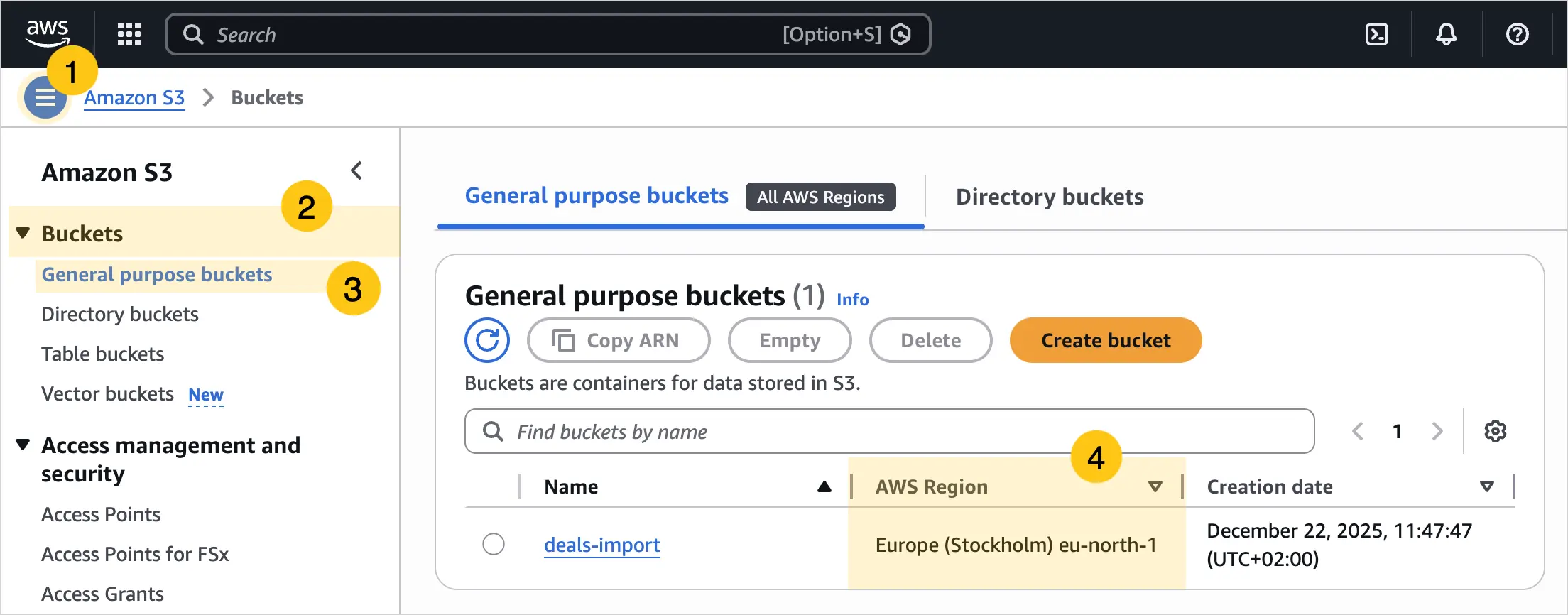 |
| Bucket* | The name of your S3 storage (bucket) that you specified when creating it in AWS. You can find this value in your AWS console > navigation panel 1 > Buckets 2 tab > General purpose buckets 3 tab > Name 4 column. 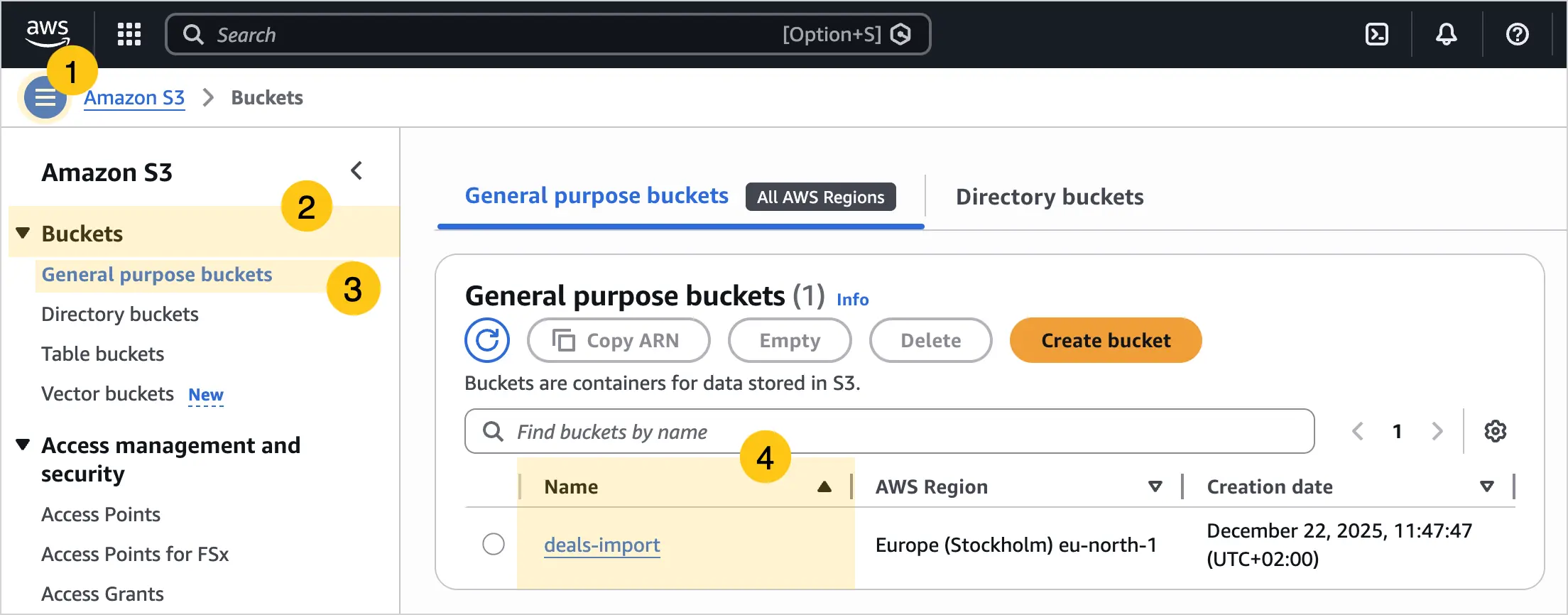 |
| Access Key ID* | The public identifier of the IAM user. You generated it in step 4 of the Before connecting S3 storage section. |
| Secret Access Key* | The secret S3 access key. You generated it in step 4 of the Before connecting S3 storage section. |
| Action* | Defines what Nectainium will do with the files it finds in the storage. Available options:
|
| Document Type* field available only for the Create document action | Select the document type that will be created in Nectainium after the file is imported. |
| Recognition Template* field available only for the Recognize document action | Select the recognition template from the list to be used for processing imported documents. The LLM model will automatically determine the document type for each imported file among the types connected to the selected recognition template. If the AI cannot match the file to any of the document types connected to the recognition template, the system will display an error message. 💡Tip: if the system scenario sys_doc_recognize is used for recognition, we recommend creating a document type with the code Other and adding a Document Image attribute to its form to handle error cases. In this case, if a file does not match any of the document types connected in the recognition template, the system will automatically create a document of type Other and save the file in the Document Image attribute. |
| With Preview field available only for the Recognize document action | Select the checkbox if you want to review the recognition result, then manually edit it (if needed) and save it. If the checkbox is cleared, the platform will immediately save the recognition result as documents. |
-
In the toolbar, select Save.
- After adding S3 storage to Nectainium, the platform automatically checks for new files in the storage every 15 minutes and processes them according to the selected action (document creation or recognition). You can view import and recognition results in the Log shortcut.
- Import works in synchronization mode: if the same file is added to the storage again without changes, Nectainium will not re-import it or overwrite the already processed file. However, if the file has been modified (for example, a Word document was edited and saved with new content), it will be treated as a new file and imported again.
2.10.5.2. View Import Results
-
In the navigation panel, select the Studio 1 workspace.
-
Select the Integration 2 shortcut group, then select the Import from S3 Storage 3 shortcut group.
-
Select the Log 4 shortcut.
-
Depending on the selected action, view the import result in the corresponding column:
-
Create document — the import result is displayed in the Document A column. Select the record to open the created document.
-
Recognize document — the import result is displayed in the Task B column. Select the task icon to view the recognition details and its status.
-