1.6. User Roles
The platform uses a role-based access model, meaning that to perform certain actions, a user must be assigned an appropriate role. Each user can have one or multiple roles.
1.6.1. Types of Roles
The table below describes the system roles. If none of these meet your needs, you can create a new role.
| Role | Description | Role Permissions |
|---|---|---|
| Admin | Administrator (built-in role) | Highest access level providing full access to all platform elements. |
| Developer | Developer | Access to all shortcuts within the Studio desktop. |
| Monitor | Monitoring (built-in role) | Ability to work with configured elements such as:
|
| Supervisor | Security Administrator |
|
| SysOps | Support Engineer | Access to shortcuts in the Maintenance Tools group under the Administration desktop. |
| DataManager | Data Manager | Permission to edit directory content:
|
| OrganizationManager | Organization Structure Manager |
|
| LocalOrgManager | Local Organization Manager |
|
| bpmAdmin | BPM Process Administrator | Access to all BPM processes and tasks in the platform. |
| dfx_massexporter | Mass Export Executor | Perform mass document export. Available only if the additional package is installed. |
| dfx_supervisor | Document Supervisor | View all documents in the system. |
| Archivist available when the additional package dfx-archive is installed | Archivist role | Provides full access to archive entities and the ability to move documents to the archive. |
Built-in System Roles
Each user is automatically assigned one of these roles by the server.
These roles cannot be manually assigned.
| Role | Description | Role Permissions |
|---|---|---|
| User | Authorized User | Can work with configured documents, shortcuts, and search templates. Assigned to all authenticated users. |
| Anonymous | Unauthorized User | Assigned to all unauthenticated users. |
| Everyone | Any User | Assigned to all users in the Anonymous and User roles. |
We recommend assigning at least two users the Admin role. This ensures that administrative access is preserved if the primary administrator account becomes unavailable due to a potential security incident.
1.6.2. Create a Role
In addition to system roles, an administrator can create new roles. When configuring document types, you can grant access not to specific users but to roles.
To create a new role, follow these steps:
-
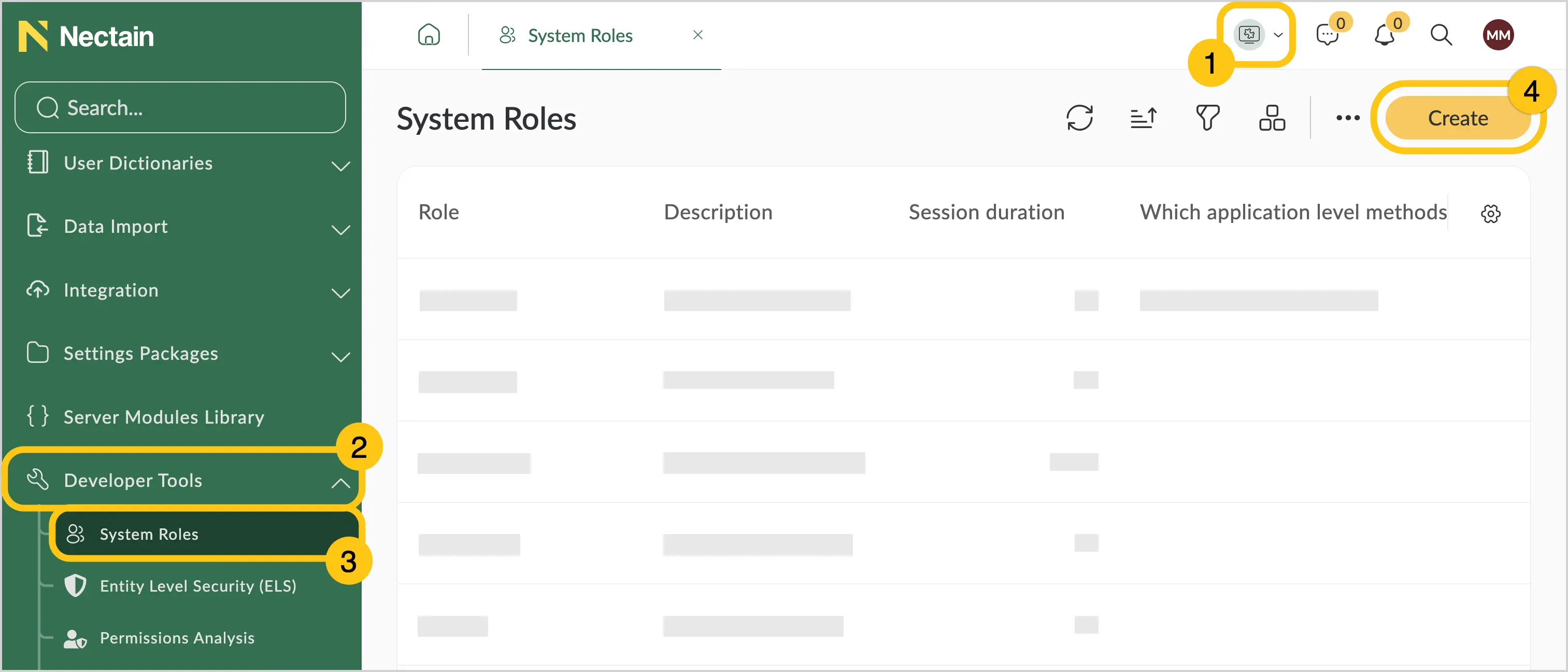
In the navigation panel, select the Studio desktop 1.
-
Select the Developer Tools shortcut group 2, then choose the System Roles shortcut 3.
-
In the toolbar, select Create 4.
-
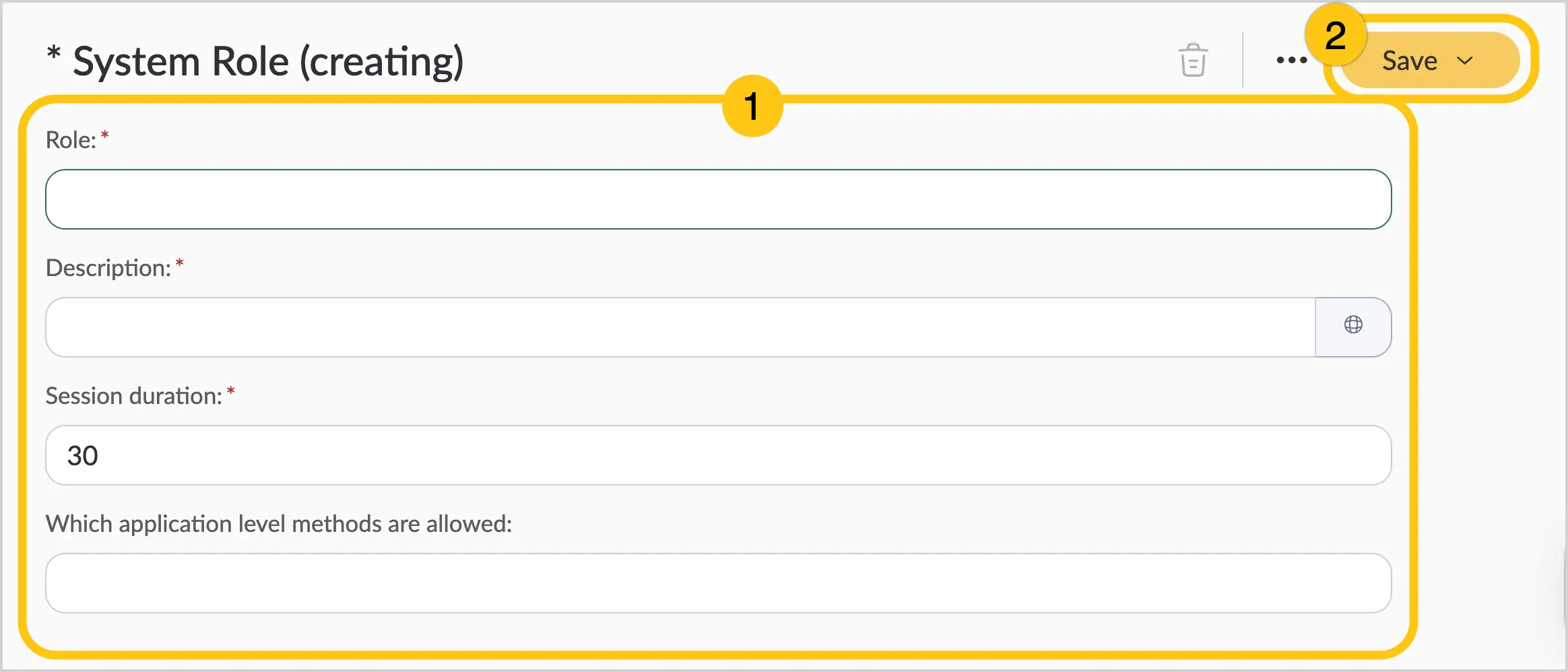
Fill in the required fields 1 using the table below, then in the toolbar select Save 2.
| Field Name | Description |
|---|---|
| Role* | Name of the role. |
| Description* | Description of the role. Specify the purpose for which this role is created. ℹ️ Note: You can set alternative descriptions for different languages. To do this, select the icon and fill in the fields for other languages. |
| Session Timeout* | Session duration for users in this role (in minutes). Defines the period after which the session will expire if the platform remains open but inactive. |
Fields marked with an asterisk (*) are required.
1.6.3. View Roles Assigned to Users
-
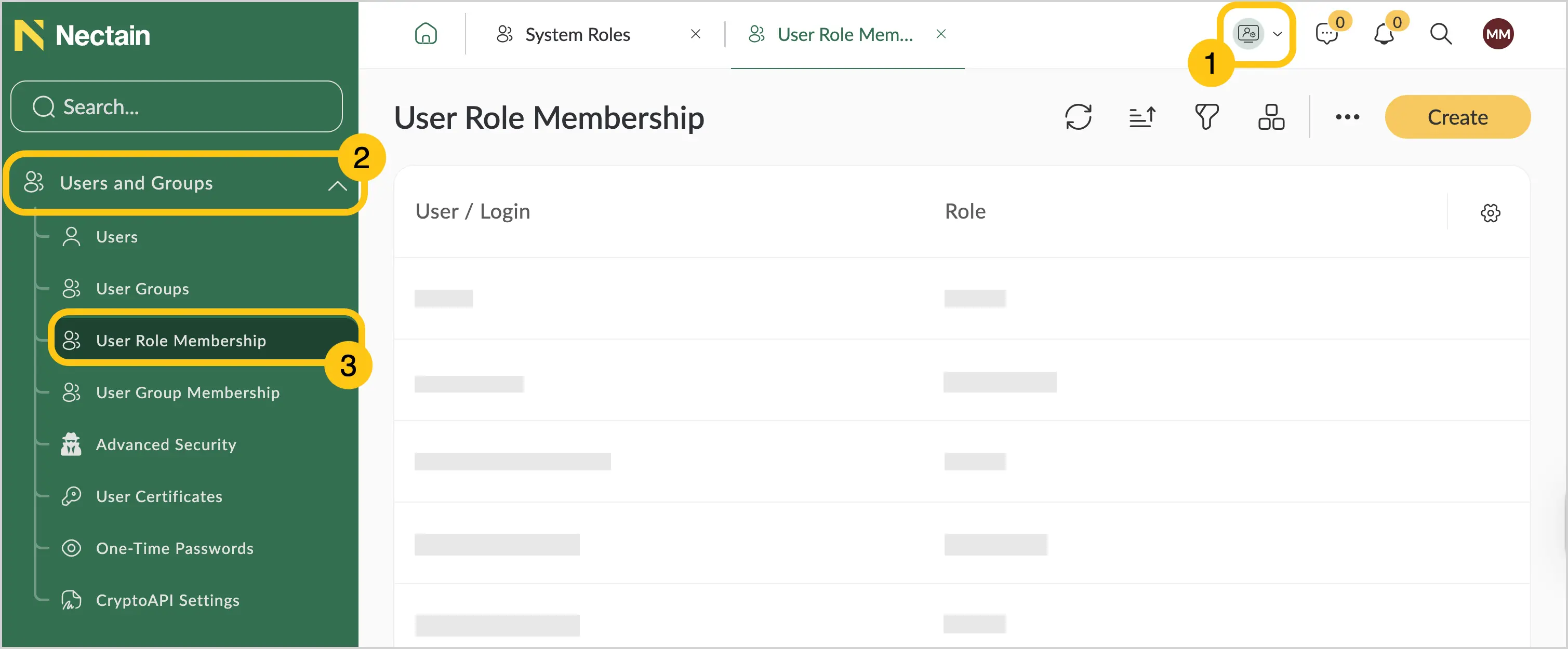
In the navigation panel, select the Administration desktop 1.
-
Select the Users and Groups shortcut group 2, and then choose the User Role Membership shortcut 3.
1.6.4. Assign a Role to a User
-
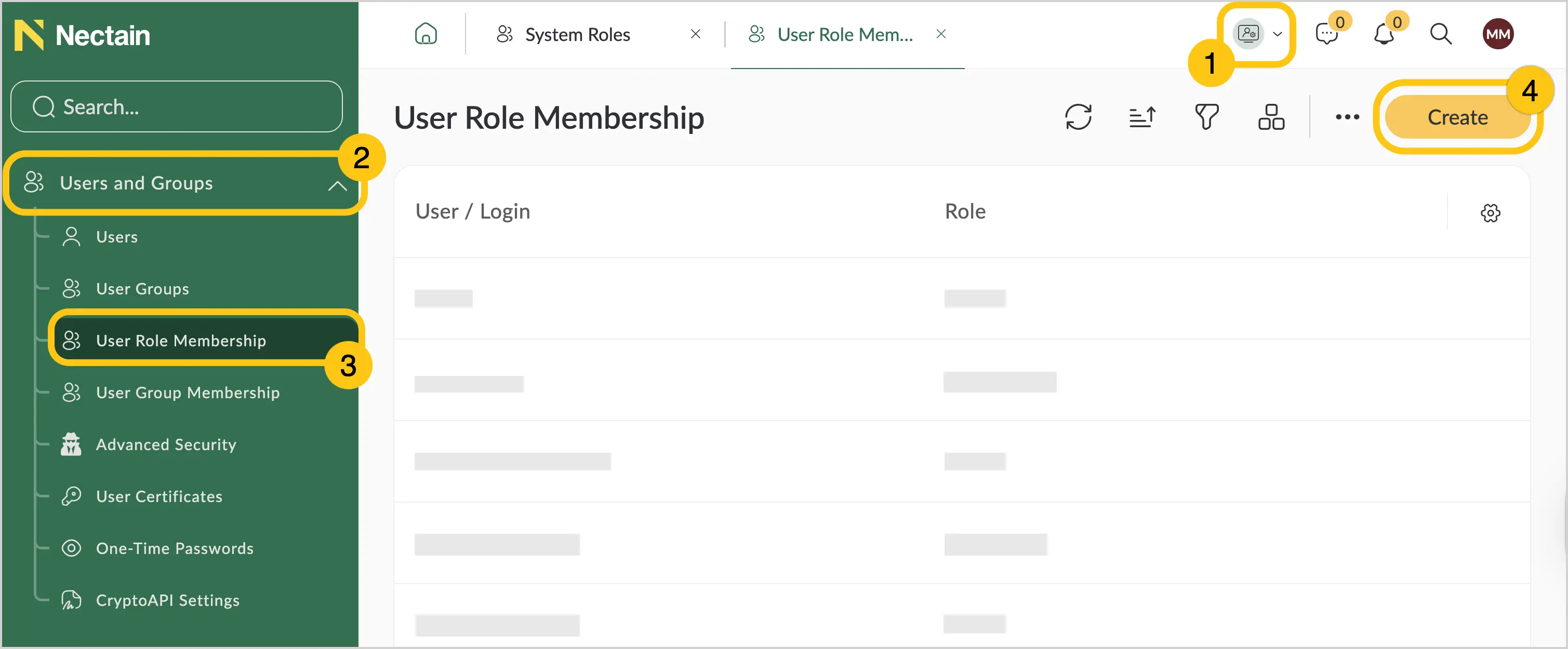
In the navigation panel, select the Administration desktop 1.
-
Select the Users and Groups shortcut group 2, and then choose the User Role Membership shortcut 3.
-
In the toolbar, select Create 4.
-
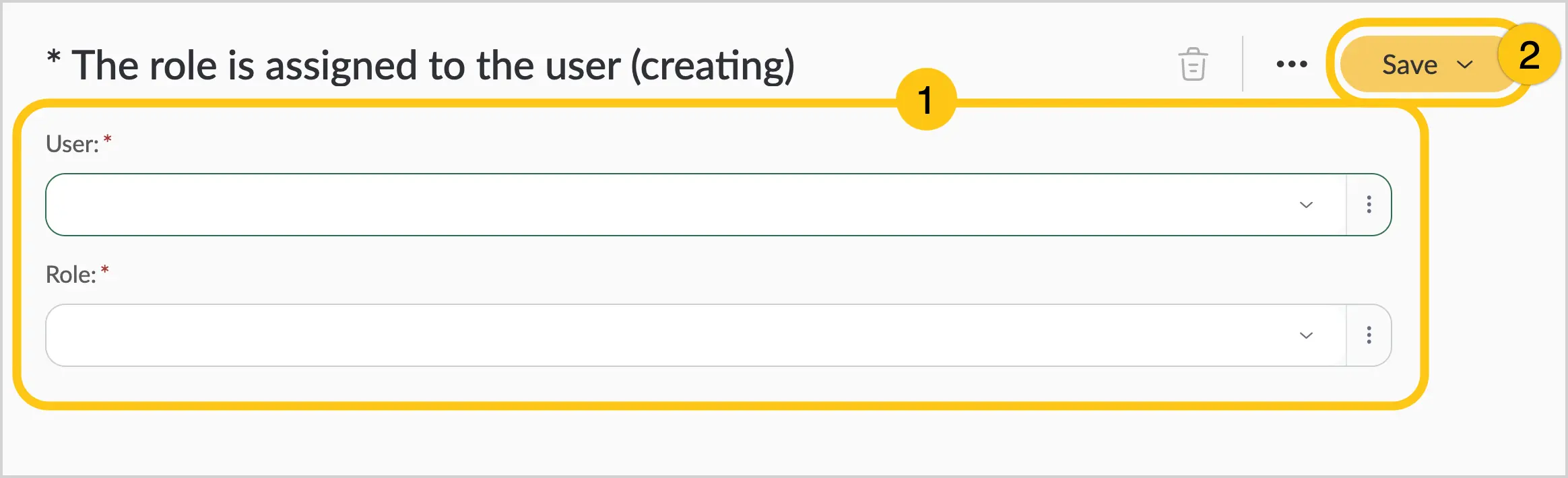
Fill in all required fields marked with an asterisk (*) 1, then in the toolbar select Save 2.