1.5. Create an Employee Card
An Employee is a unit within the organizational structure that enables participation in processes.
To create an employee card, you must first create a user.
-
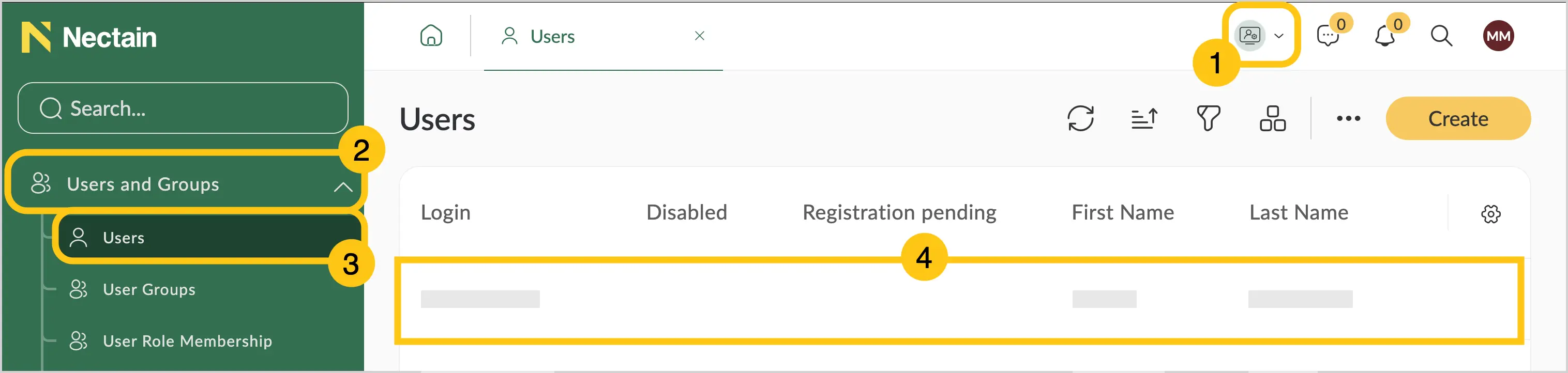
In the navigation panel, select the Administration desktop 1.
-
Select the Users and Groups shortcut group 2, and then choose the Users shortcut 3.
-
Select the record with the desired user and double-click it to open 4.
-
In the toolbar, select Create Employee Card.
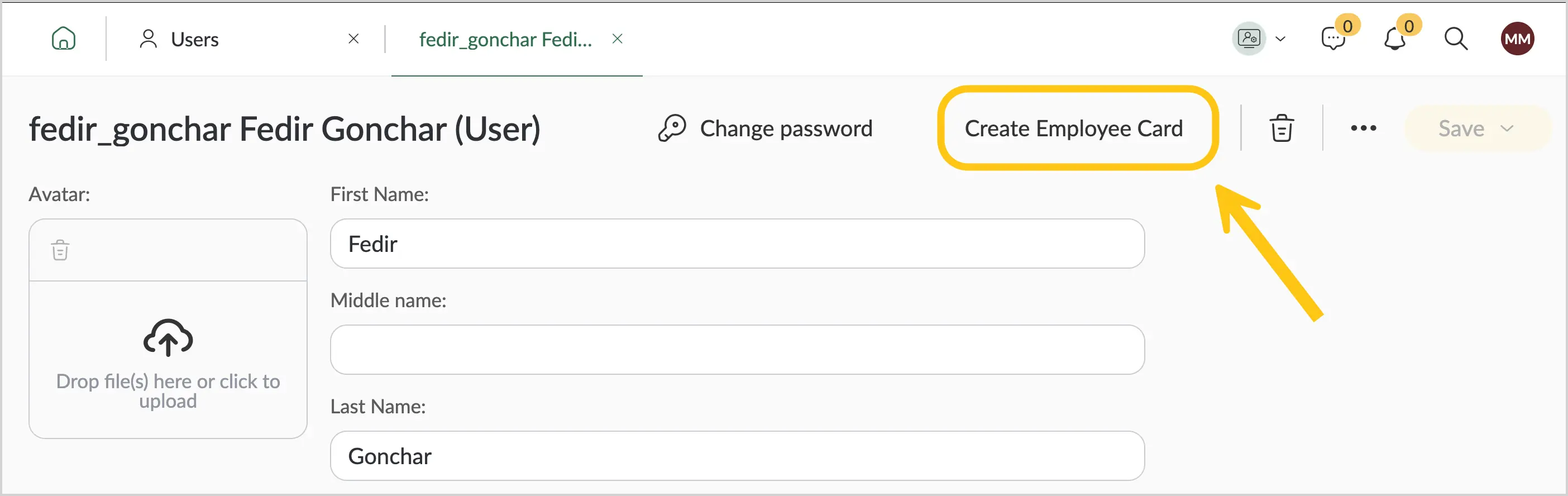
The system will automatically create an employee card, transferring the user’s first name, last name, middle name, and form of address into it.
-
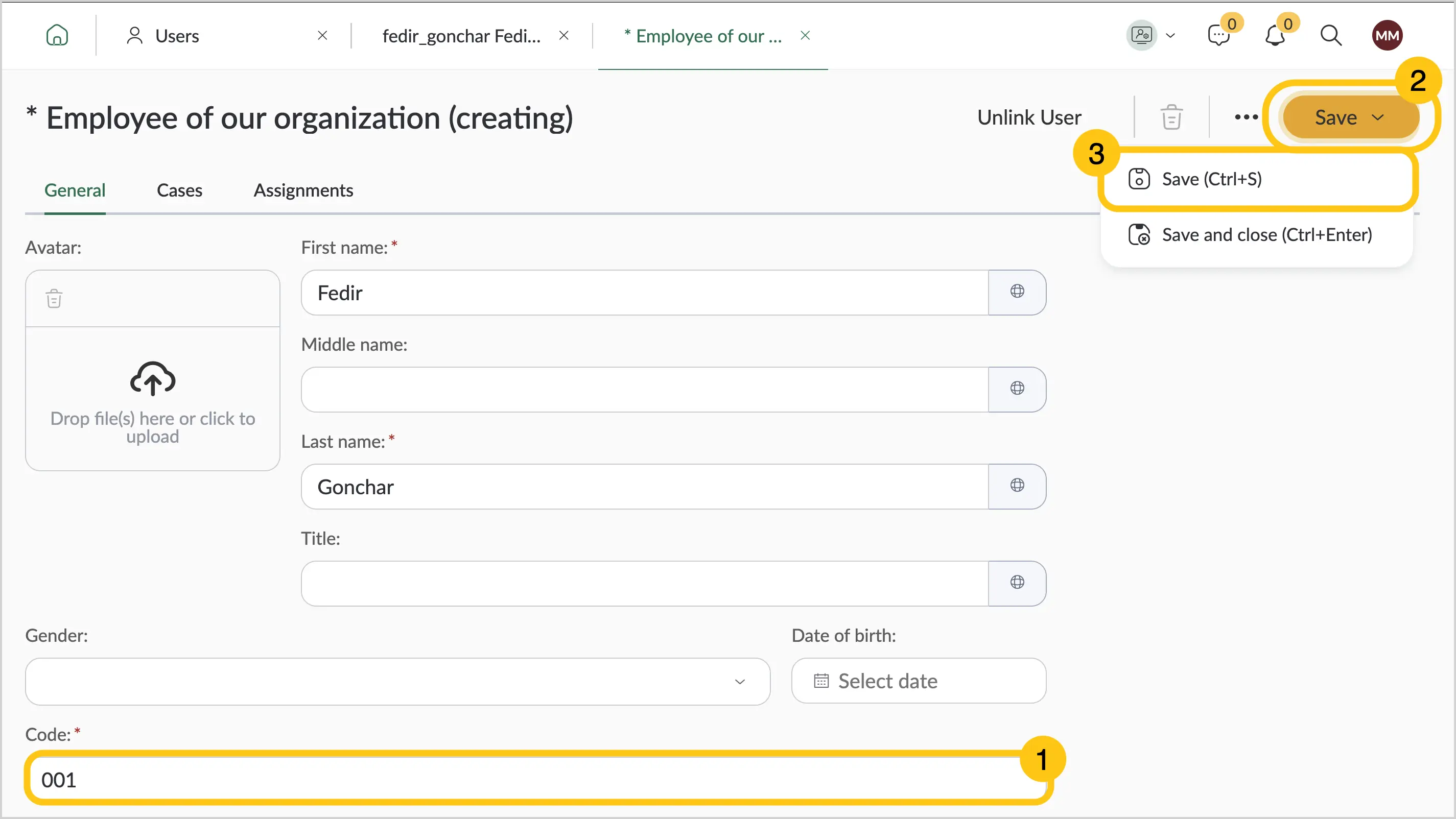
In the Code field 1, enter the employee code.
-
In the toolbar, select the Save button 2, and then select Save 3.
-
To view the profile, select Open User Profile.
To allow the user to work with the platform, you must link the employee to the user (see Link Employee to User). After that, assign the employee to a position (see Assign Employee to Position).