Adjust display
Change view
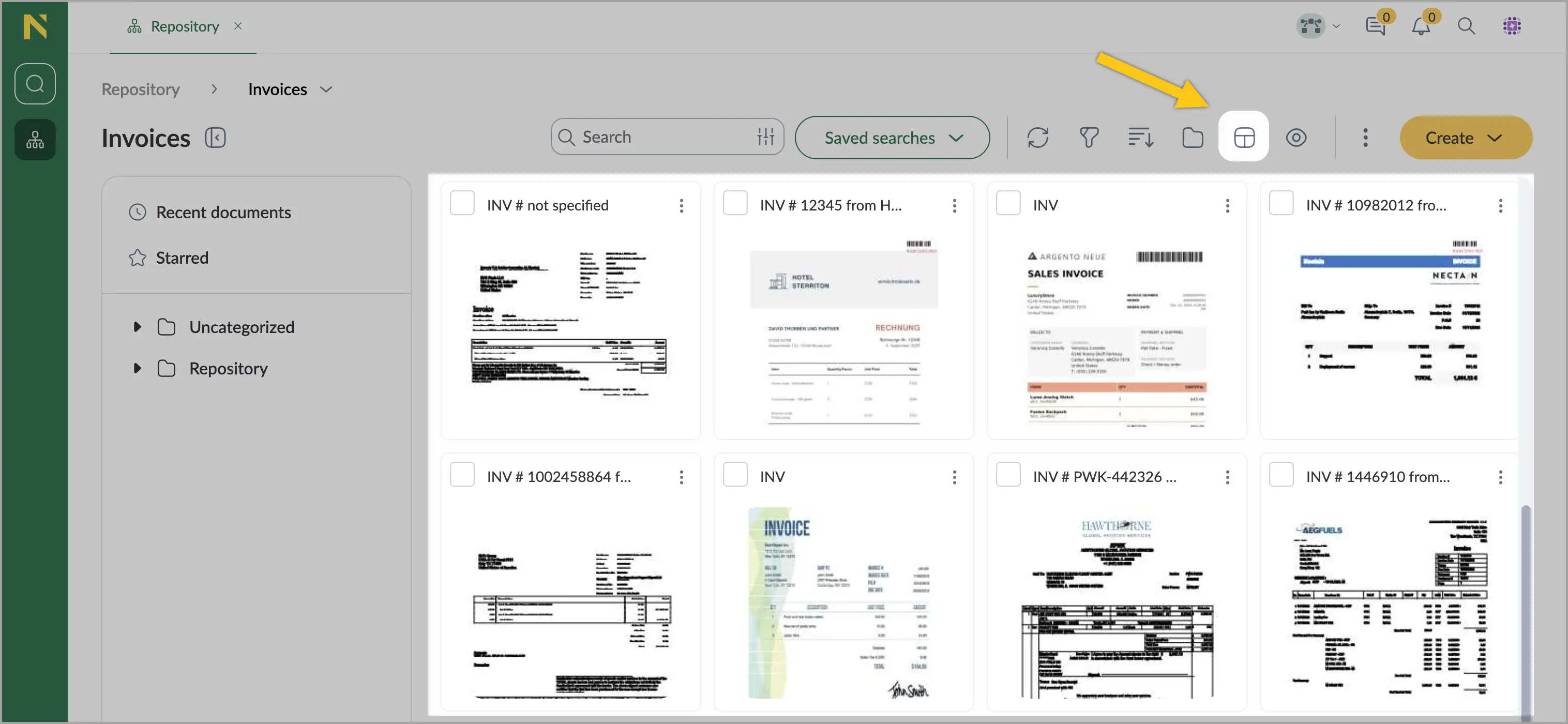
To switch to the Card View, in the toolbar, select the card  icon.
icon.
The card view displays documents as preview thumbnails, allowing you to see visual representations of your documents.
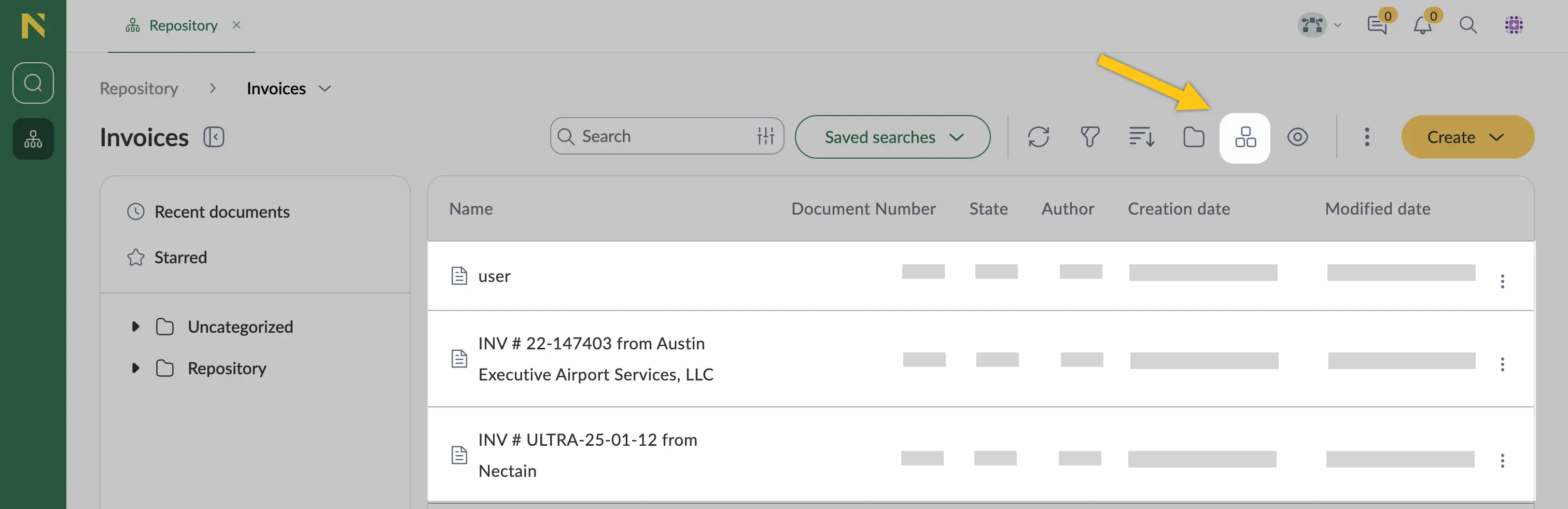
To switch to the Table View, in the toolbar, select the table  icon.
icon.
The table view displays documents in rows with columns showing document properties such as Name, Document Number, and others.
Show/hide column
-
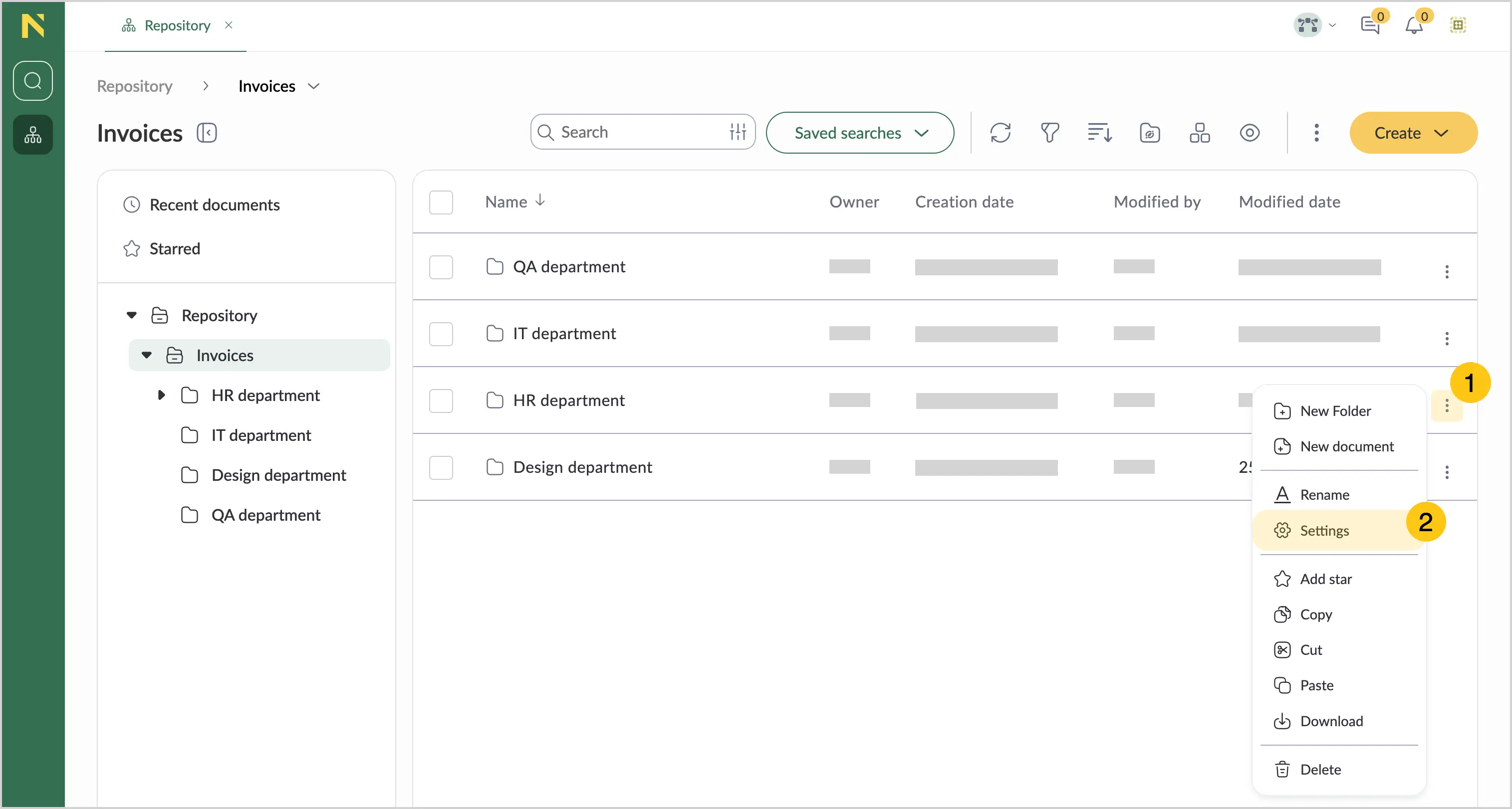
Hover over a folder, and then select 1.
-
Select Settings 2.
-
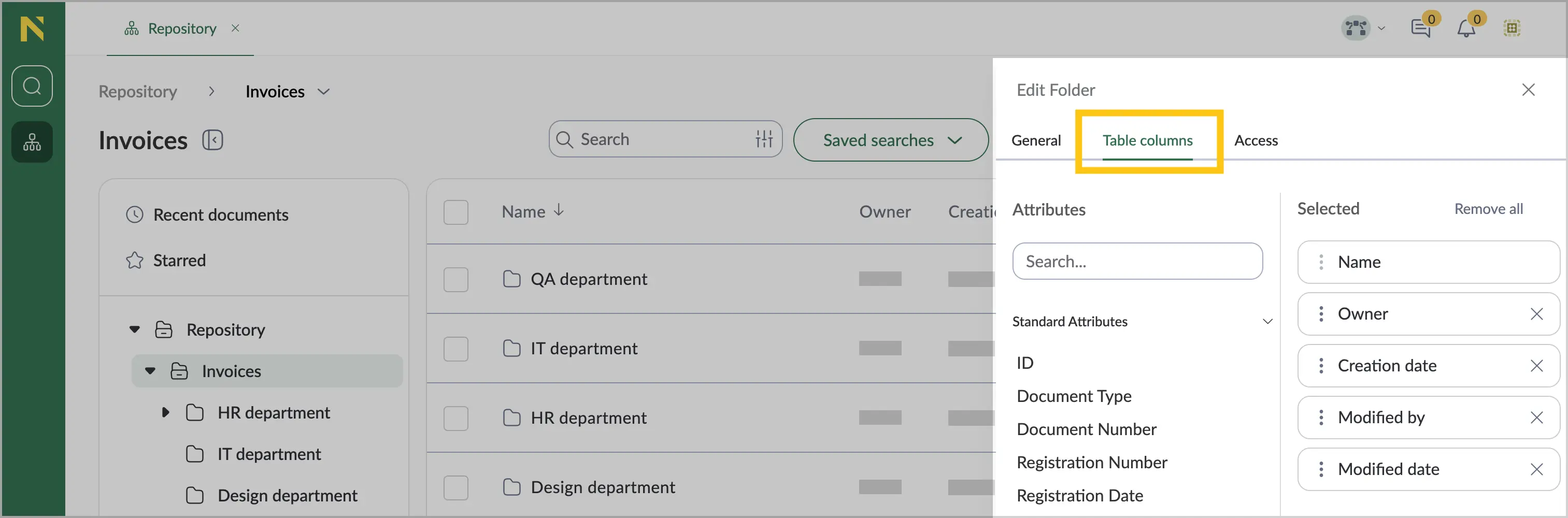
Go to the Table columns tab.
-
To hide a column, select the
 icon next to its name.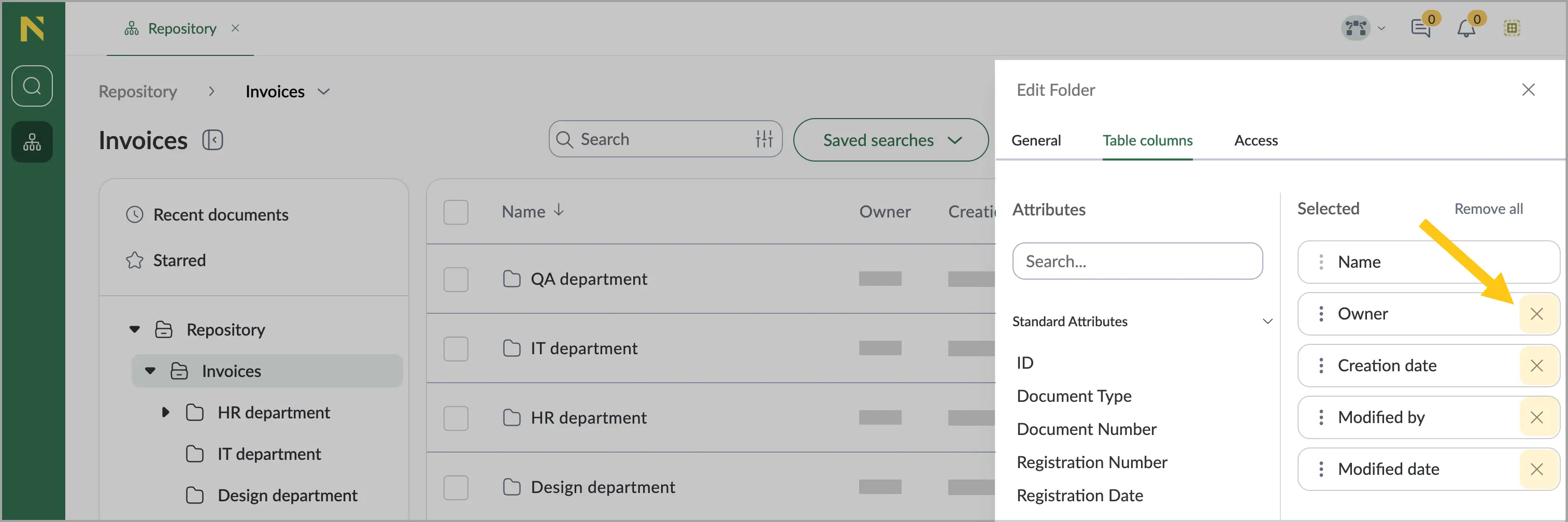
-
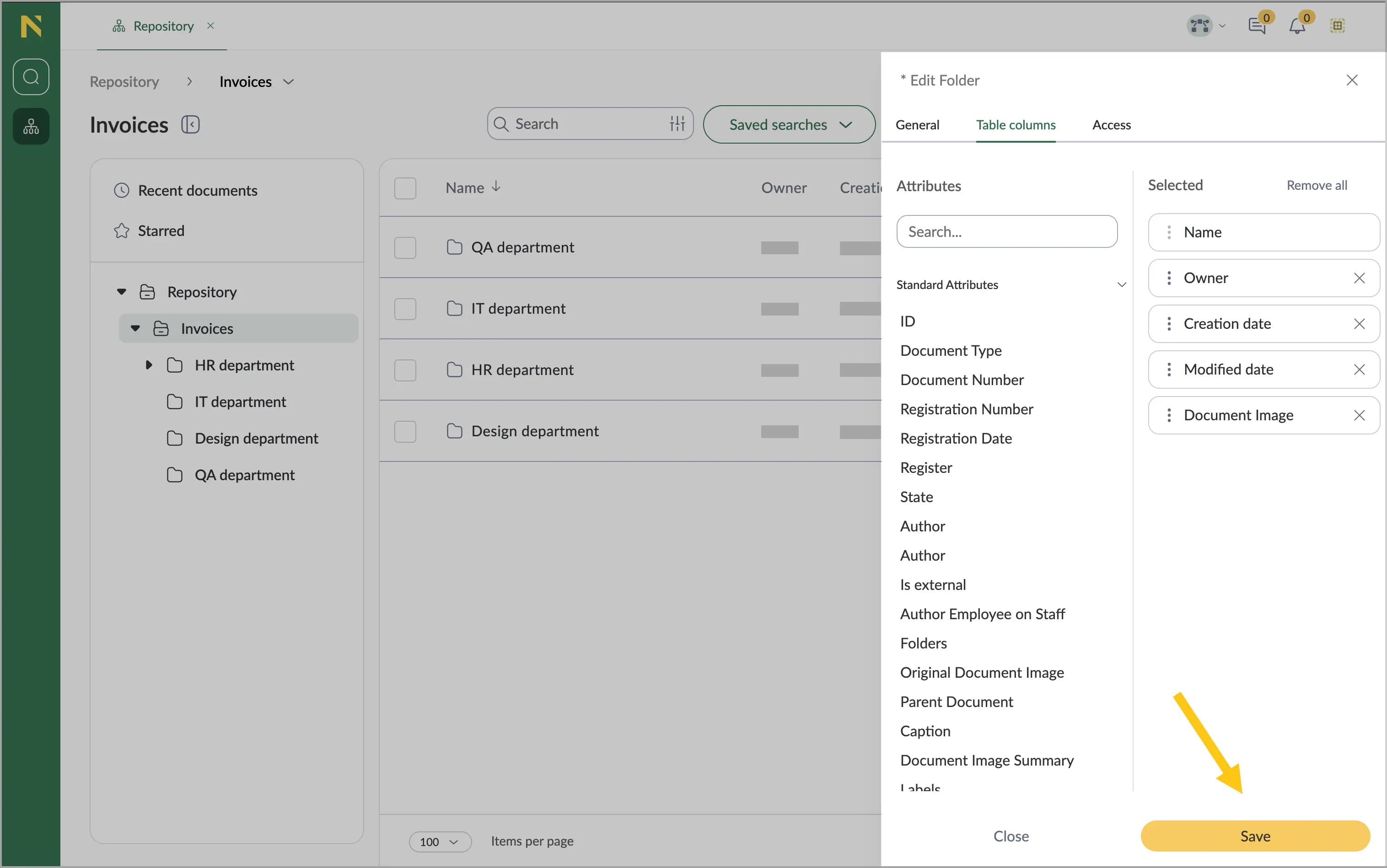
Select Save.
Reorder columns
-
Hover over a folder, and then select 1.
-
Select Settings 2.
-
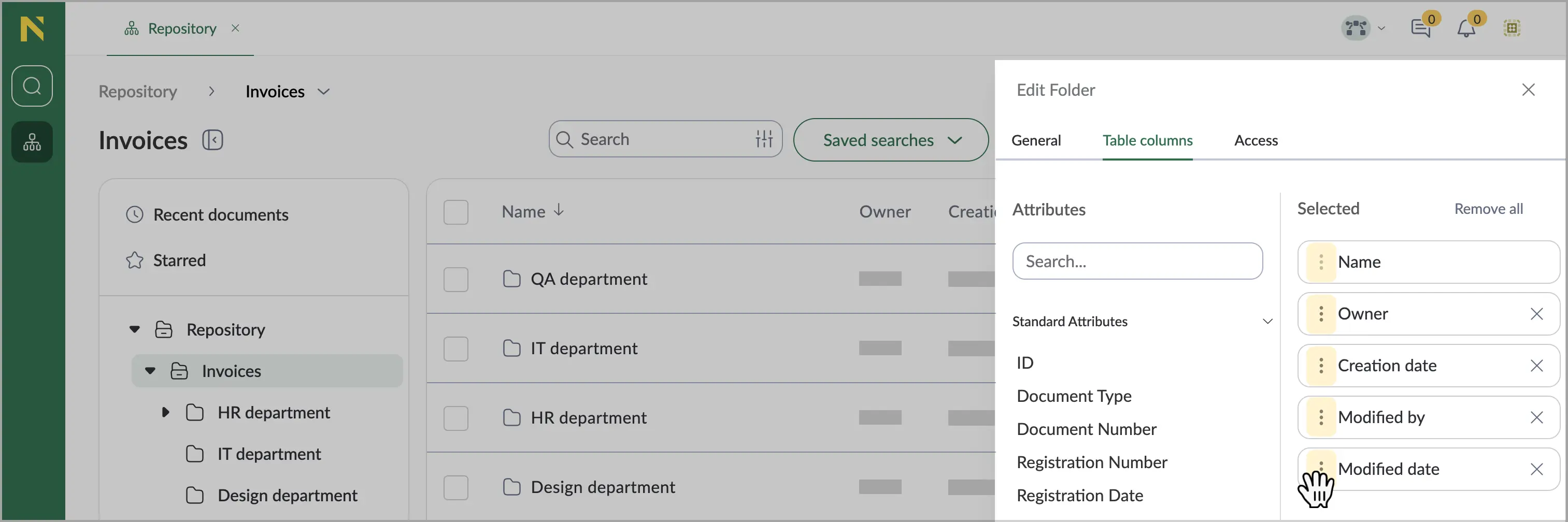
Go to the Table columns tab.
-
To reorder columns, drag the icon next to each column.
-
Select Save.
Show/hide item preview
-
Select the needed document or folder 1, and then in the toolbar, select the
 icon 2.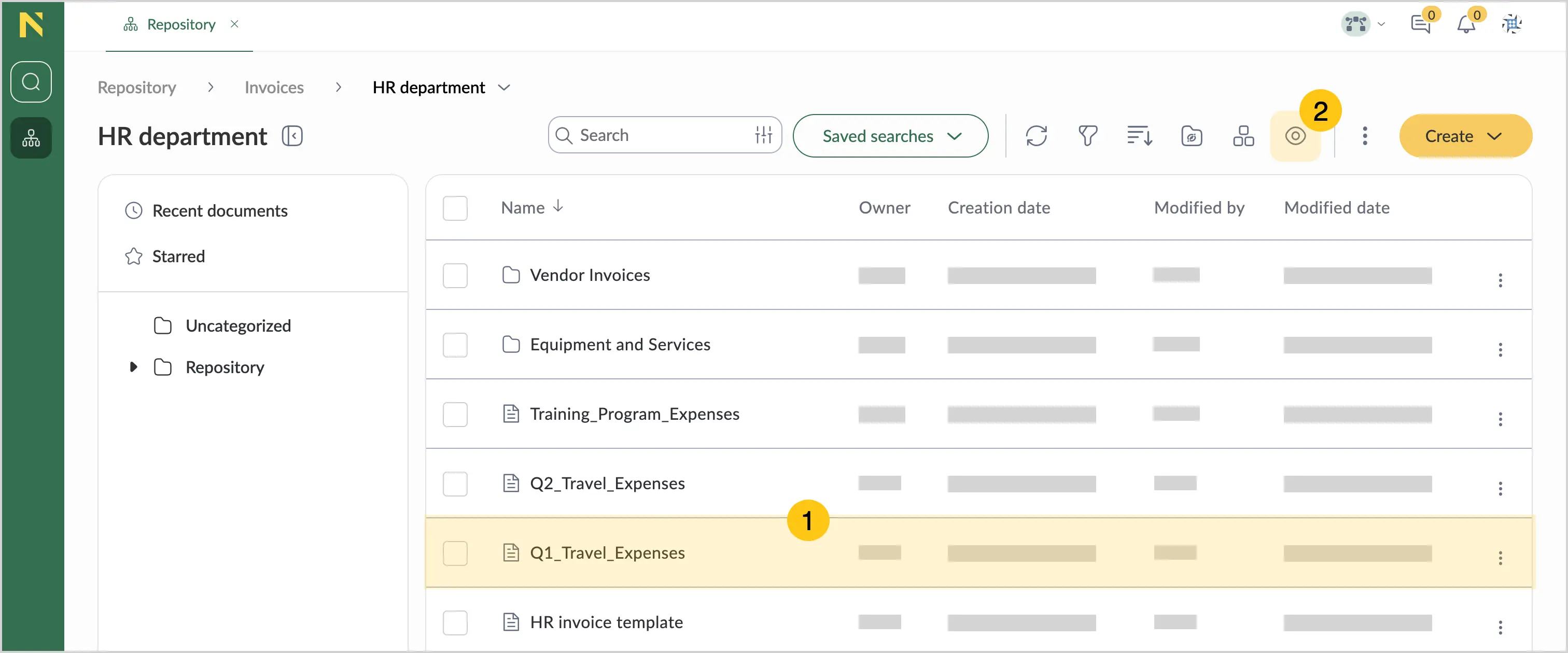
-
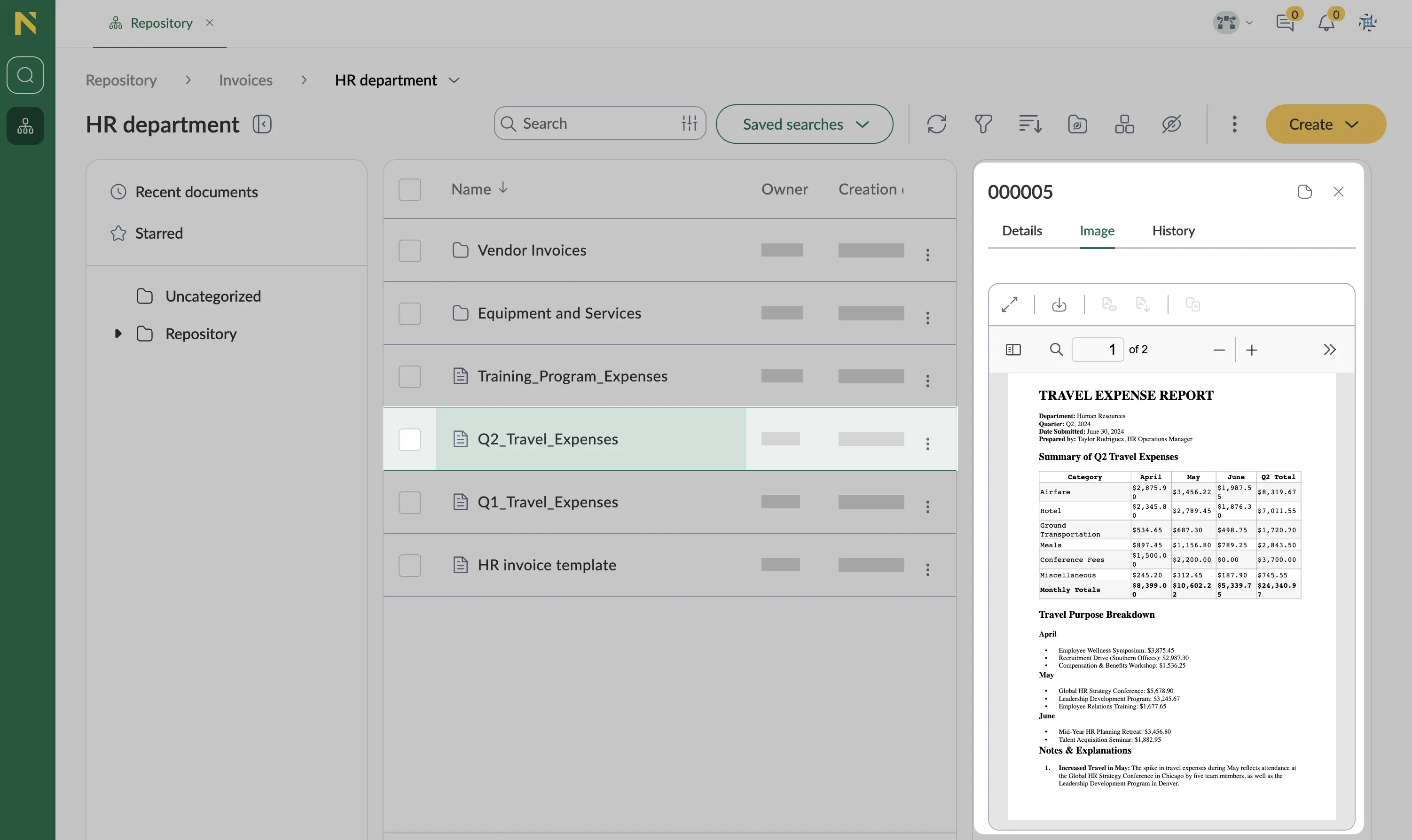
On the right side of the screen, the platform will display the Preview sidebar.
-
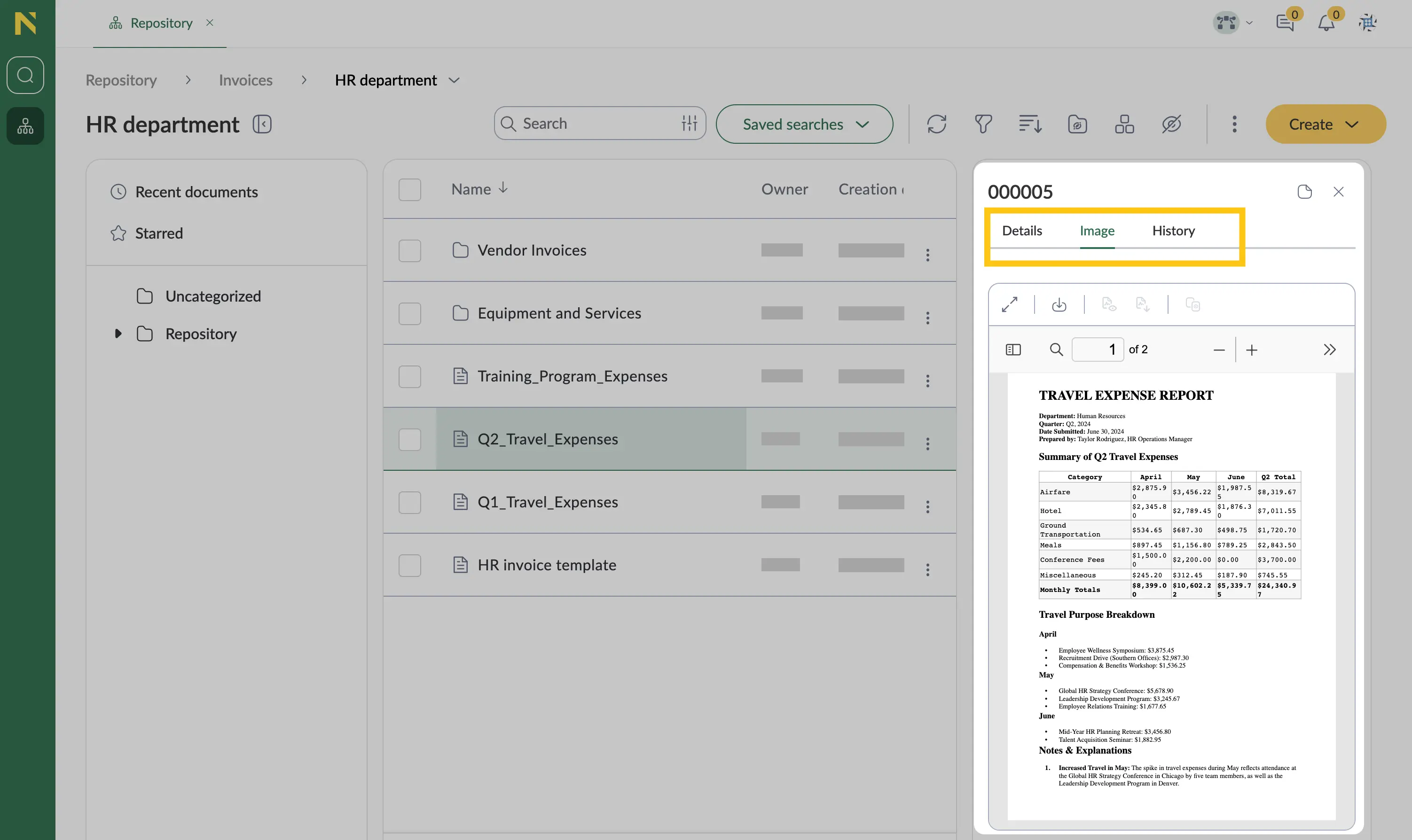
Use the tabs to switch between different types of item information, such as Details, Document Image, or History.
Display more items on page
You can adjust how many items are displayed on a single page when browsing folders and documents.
To change the number of displayed items per page:
-
Navigate to the folder where you want to view more items.
-
On the page footer, locate the pagination controls.
-
Select the Items per page dropdown list, and then select your preferred number of items to display.
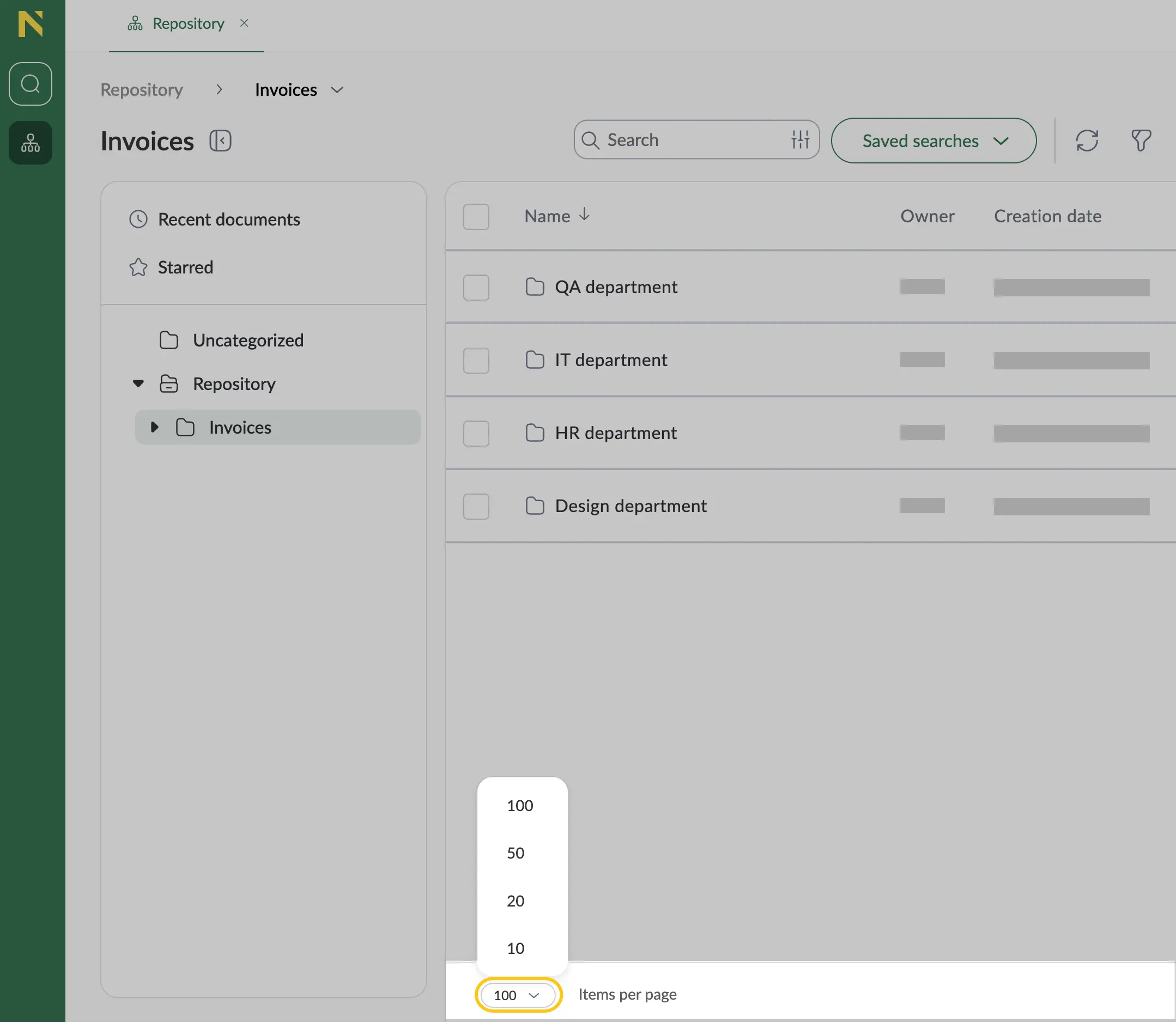
The page will automatically refresh to display the selected number of items.