Find needed folders and documents
Sort items by column
You can organize documents in a folder by sorting them based on different columns.
-
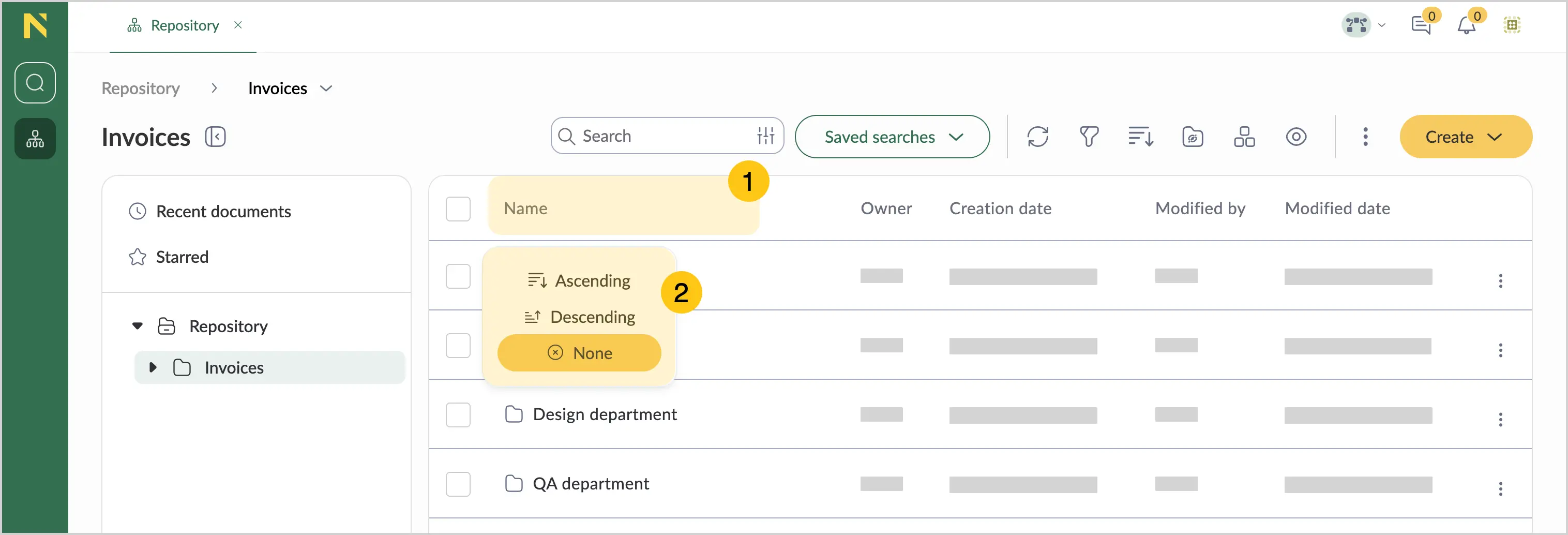
Select the column header you want to sort by (for example, Name) 1.
-
Select a sort order from the dropdown menu 2:
- Ascending — sorts from A to Z or from lowest to highest.
- Descending — sorts from Z to A or from highest to lowest.
- None — removes sorting and returns to the default order.
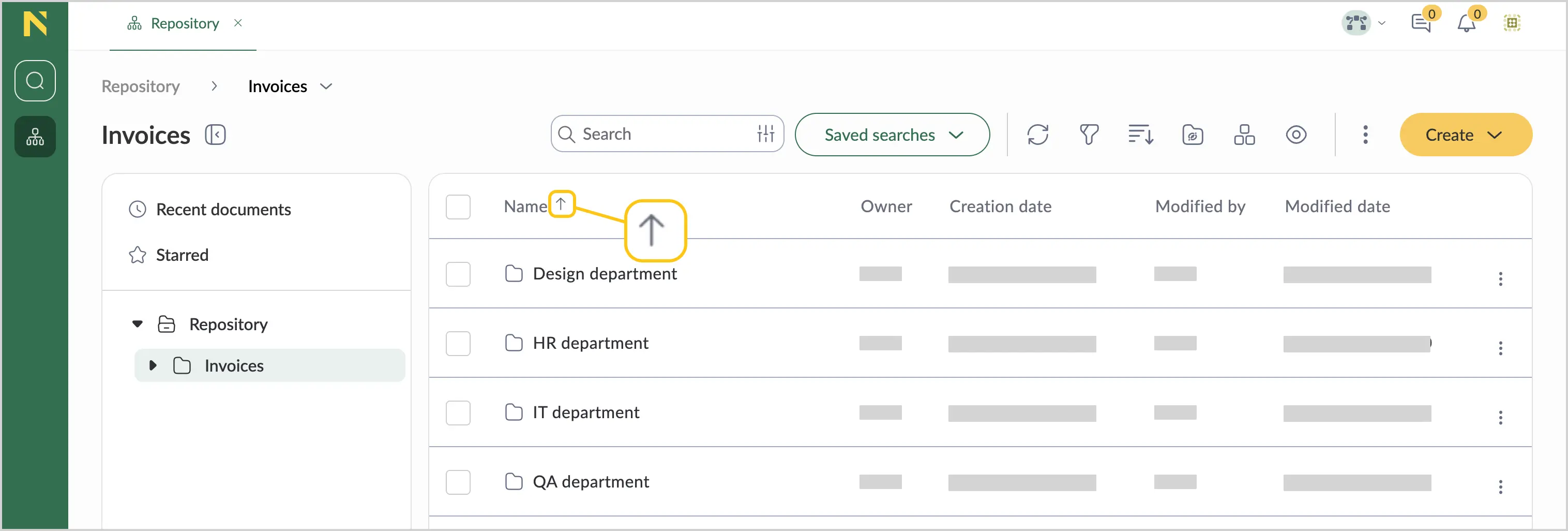
The column displays an up arrow (↑) when sorted in ascending order.
Only one column can be sorted at a time.
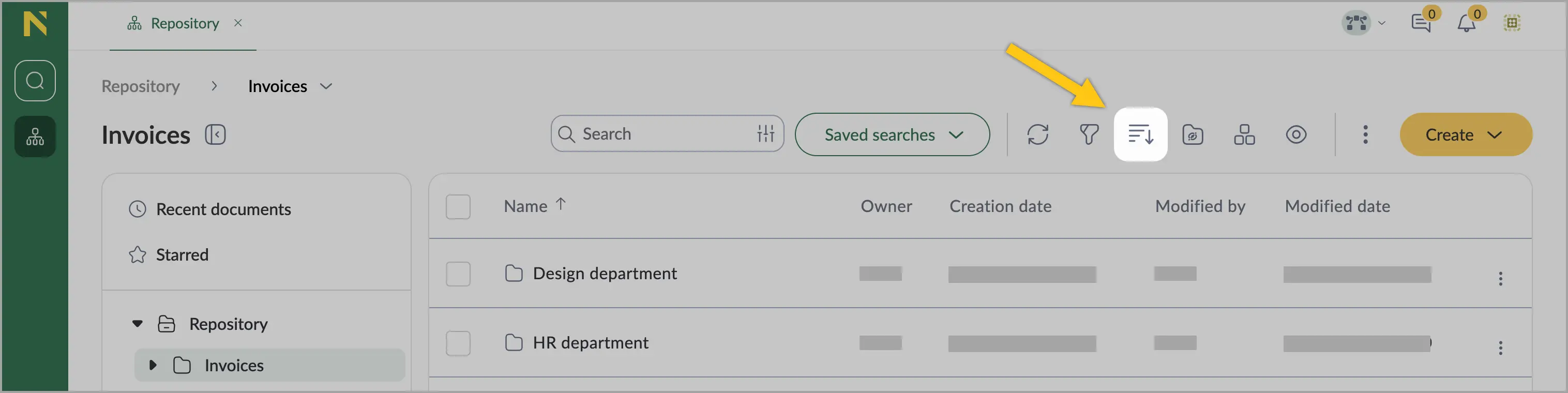
You can also sort items by selecting the  icon in the toolbar.
Filter items
You can quickly find specific documents and folders using filters.
-
In the toolbar, select the
 icon.
icon.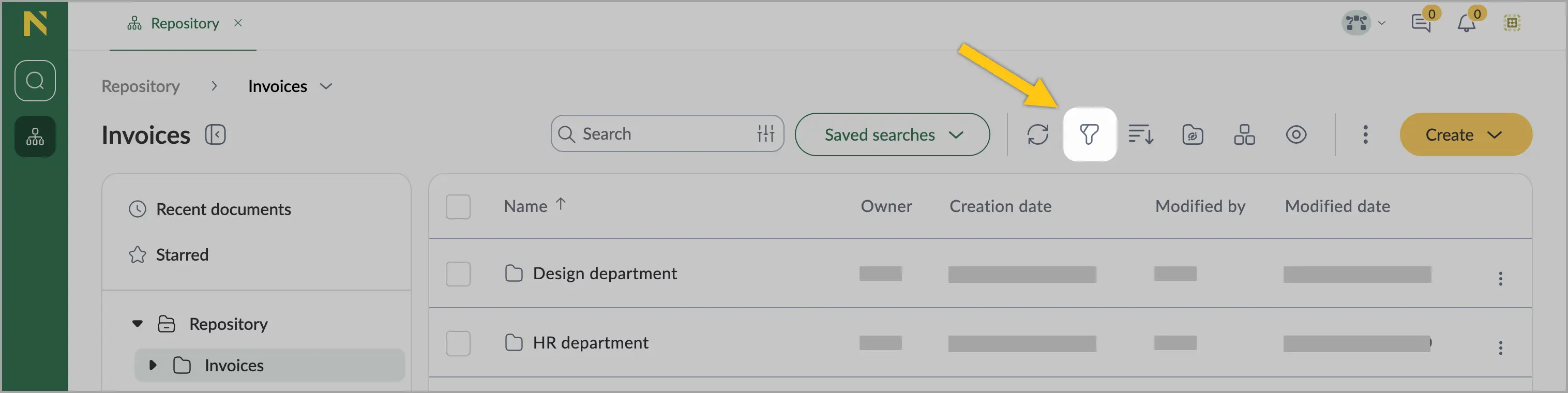
-
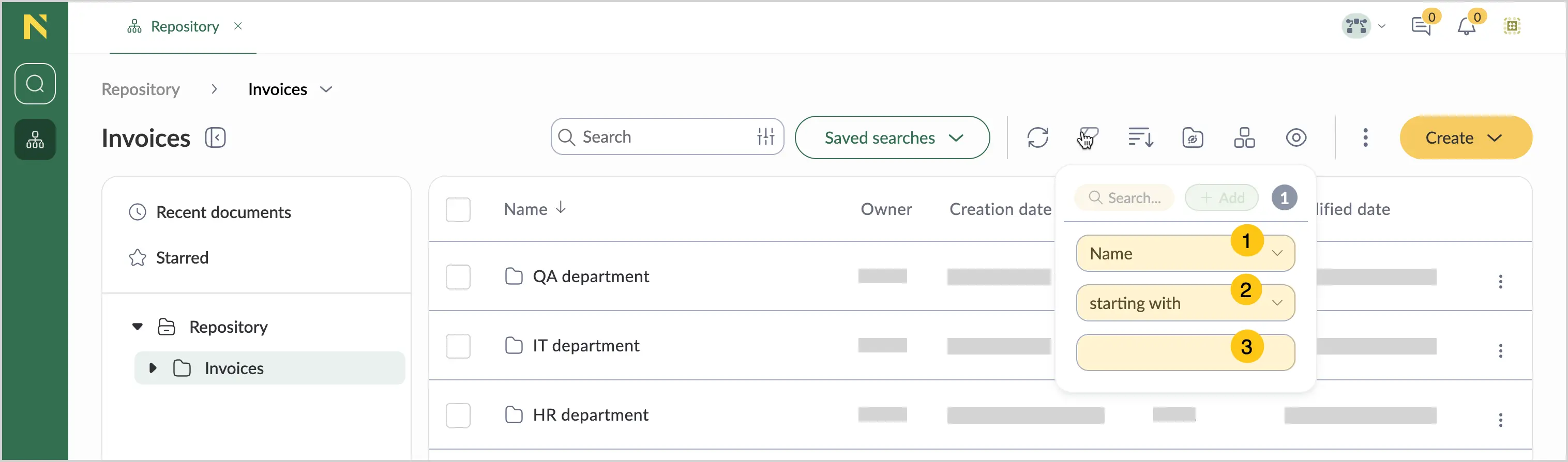
In the filter panel that appears:
a. From the dropdown list 1, select the attribute to filter by (for example, Name).
b. From the dropdown list 2, select one of the following conditions:
- starting with — shows items that begin with the specified text.
- equal — shows items that exactly match the specified text.
- contains — shows items that include the specified text anywhere.
- empty — shows items with no value for the selected attribute.
- not empty — shows items that have any value for the selected attribute.
c. In the last box 3, enter your search text.
-
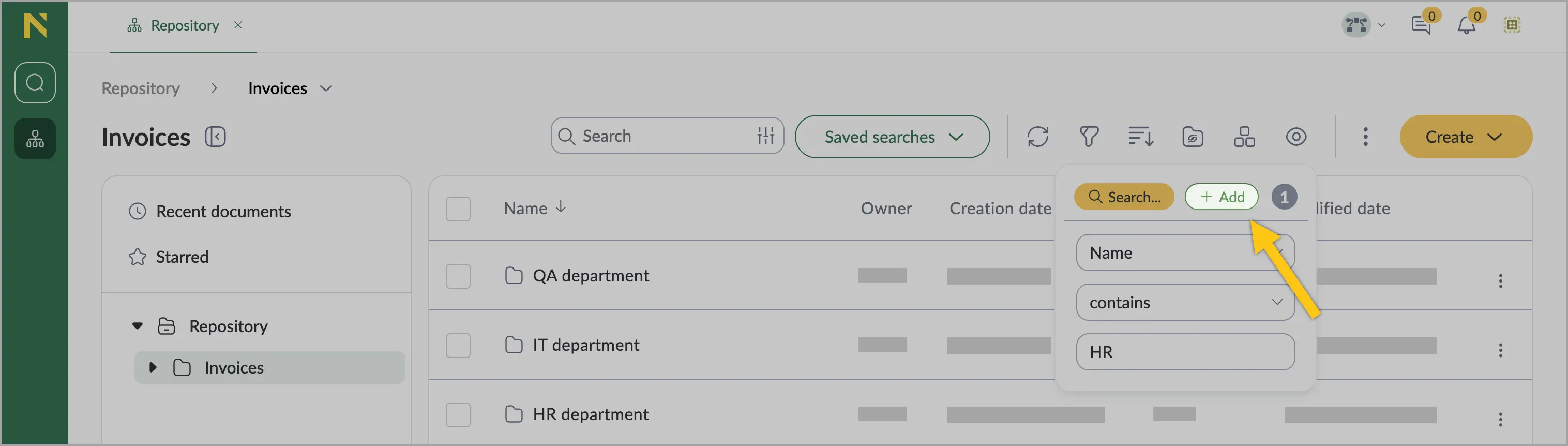
To add another filter condition, select + Add, and then configure each additional filter as needed.
-
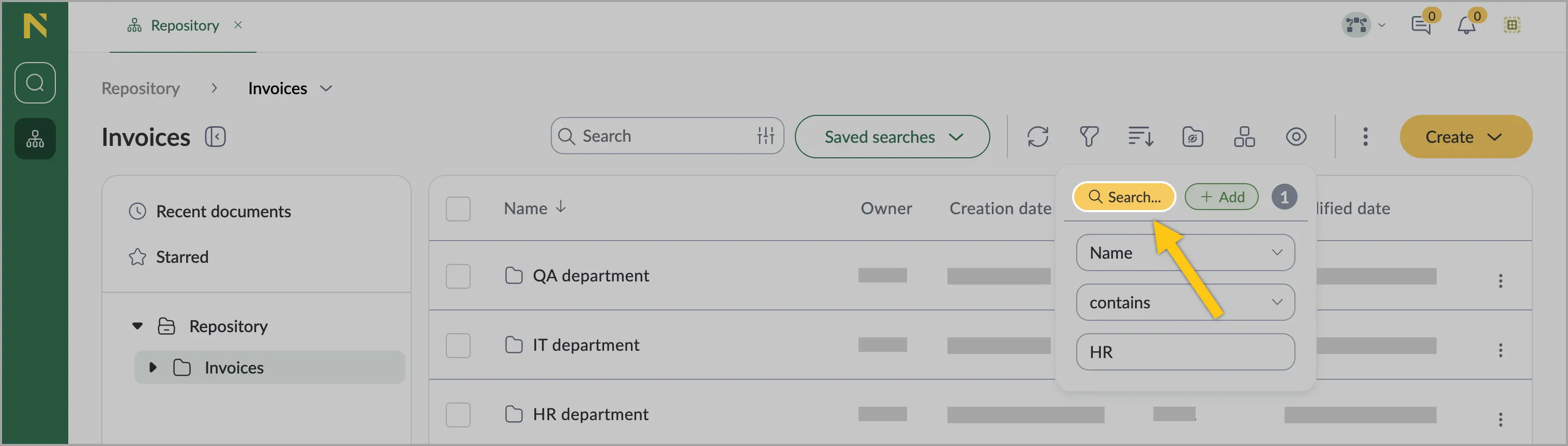
Select Search to apply the filter criteria.
Search items
Use search to find documents by their contents, name, or other criteria.
-
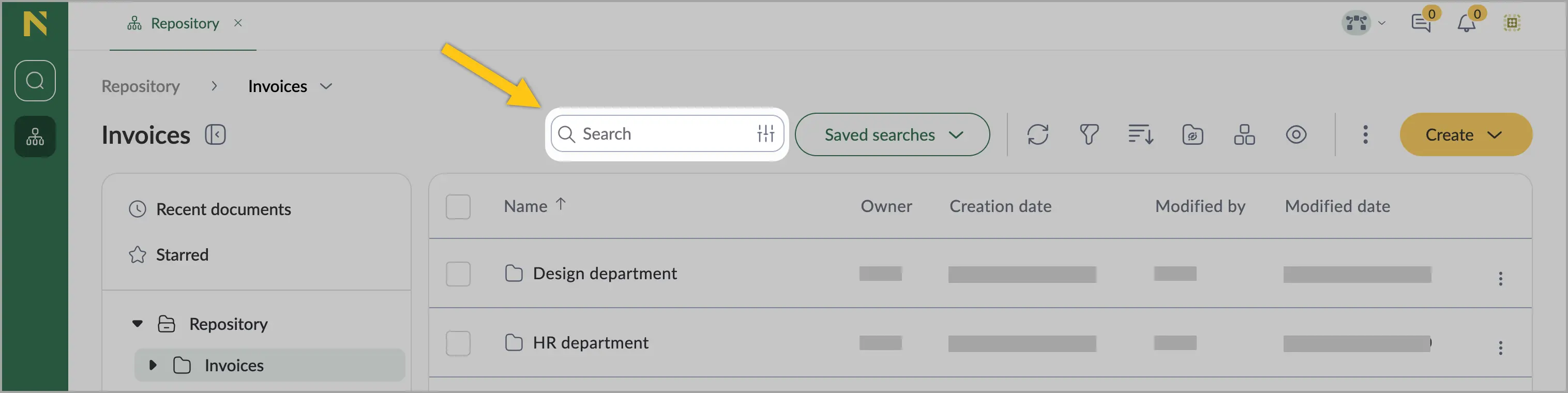
In the toolbar, select the Search box.
-
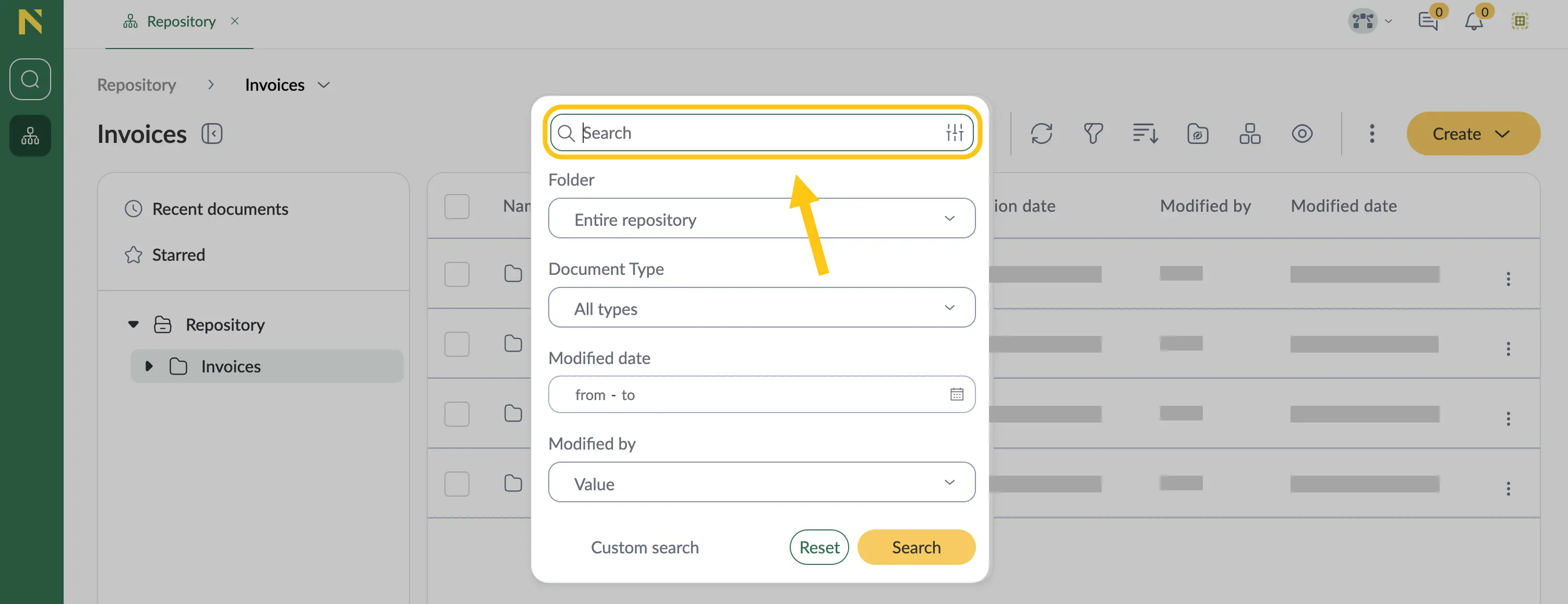
In the search panel that appears:
a. Enter your search term in the Search box.
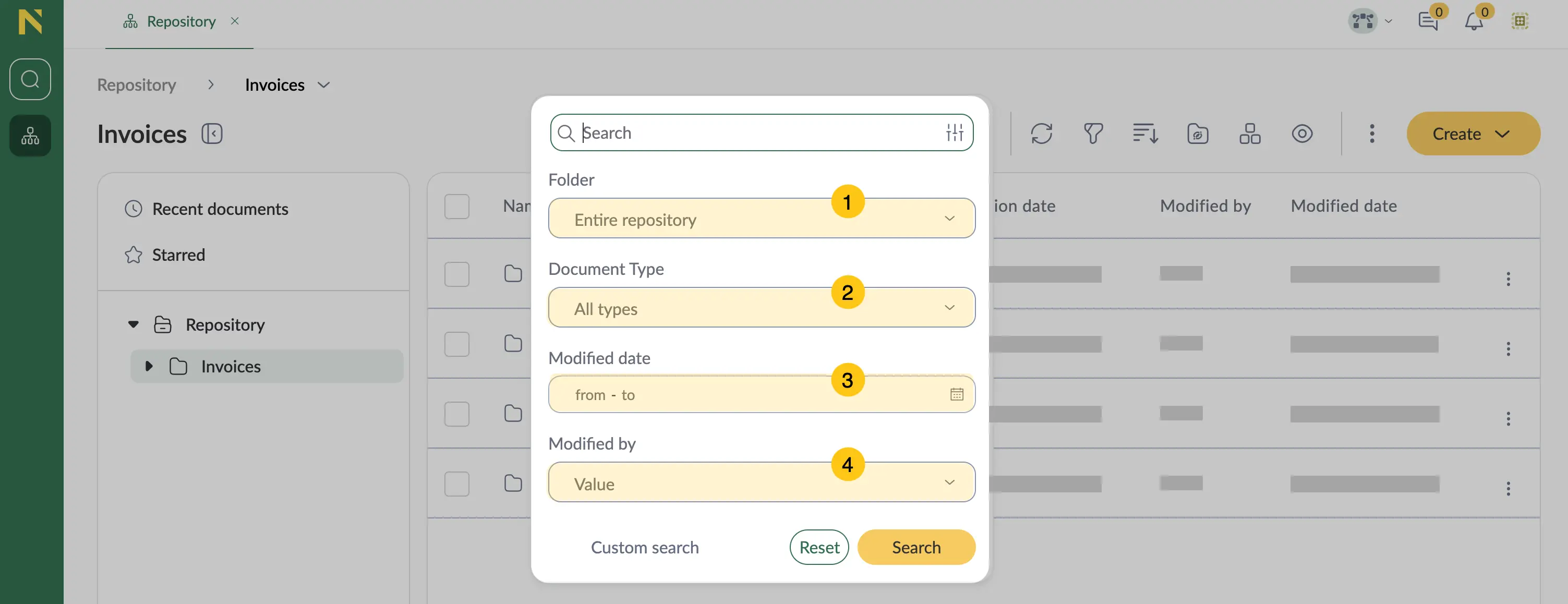
b. Optional: Configure additional search parameters:
- 1 Folder — select Entire repository or select the needed folder.
- 2 Document Type — filter by document type.
- 3 Modified date — narrow results by modification date range.
- 4 Modified by — filter by users who modified documents.
-
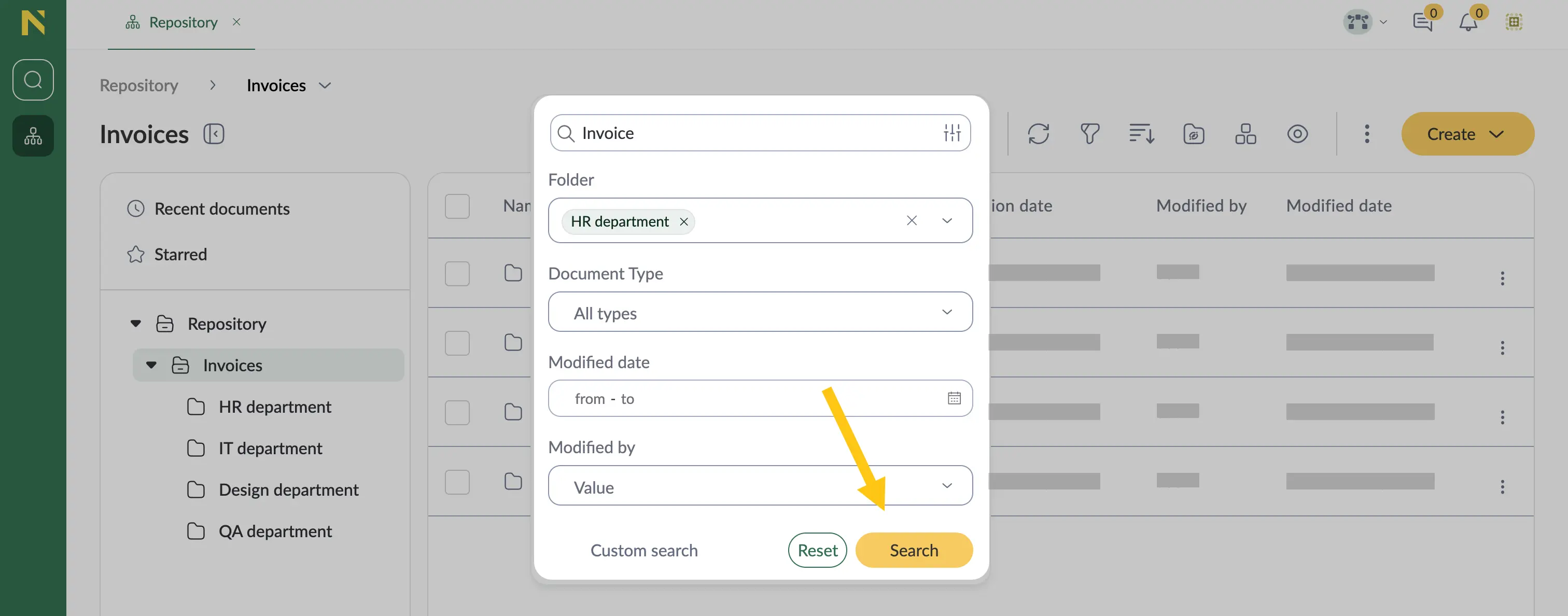
Select Search.
Saved searches
With Saved searches, you can quickly access frequently used search criteria without recreating complex queries each time.
Save new search
-
In the toolbar, select the Search box.
-
In the search panel that appears, select Custom search.
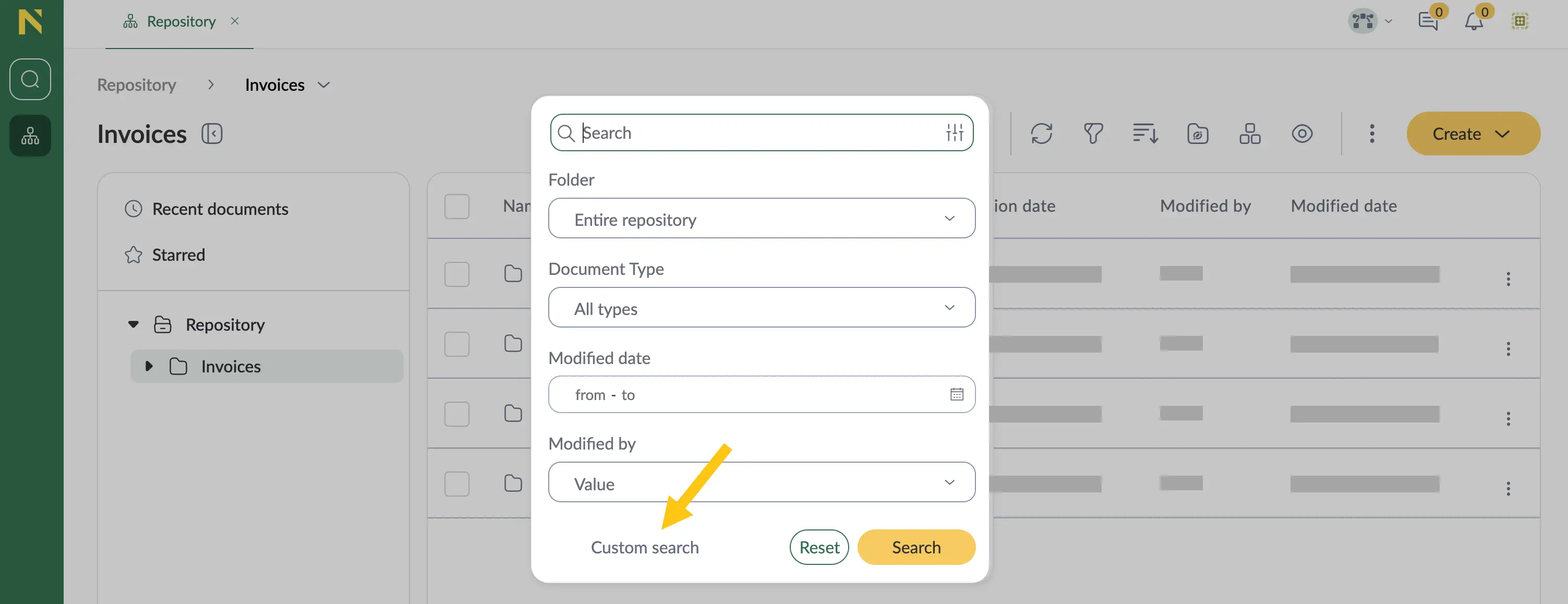
-
Set up the search parameters. See more details in the Search items section.
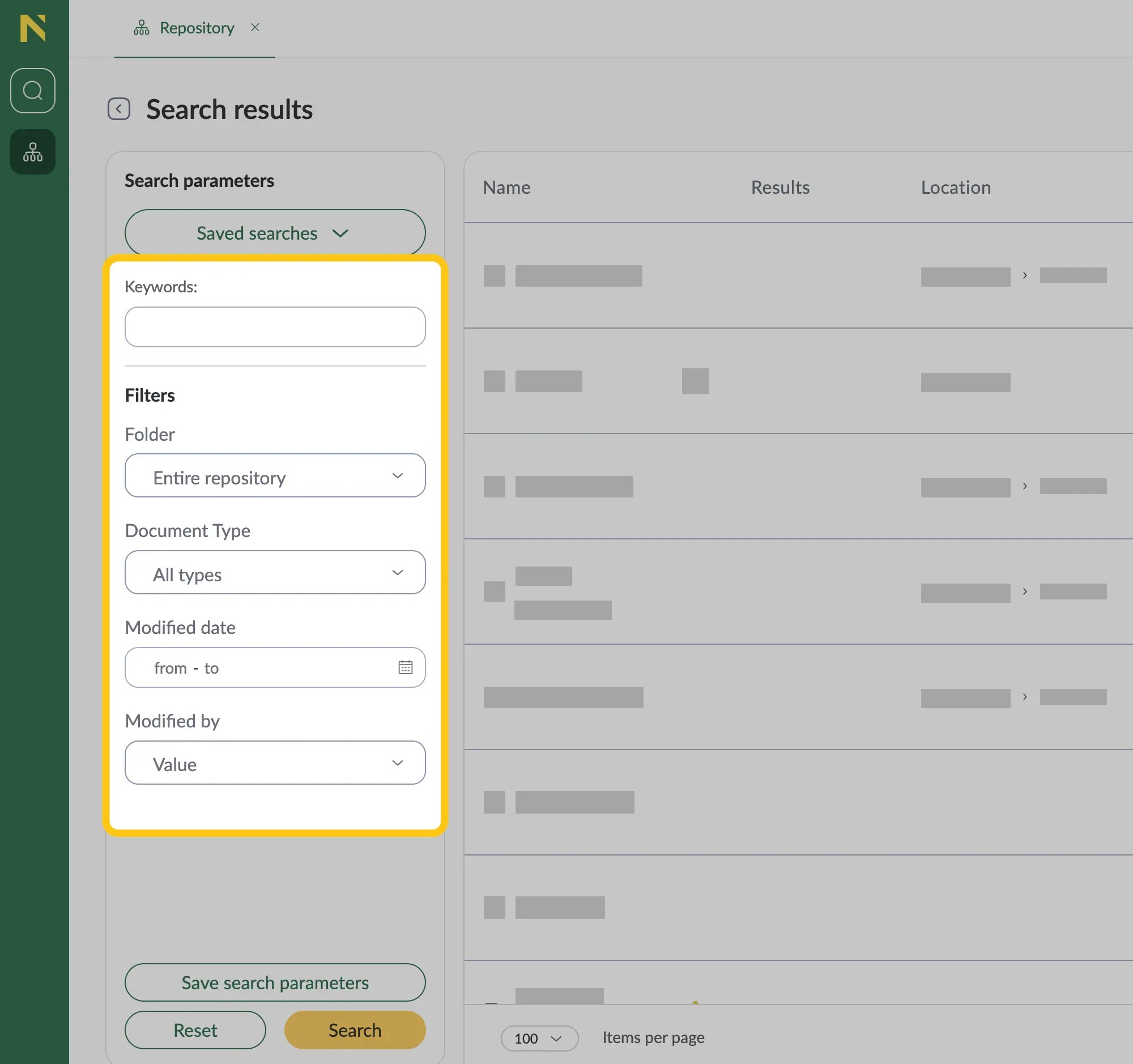
-
Select Save search parameters.
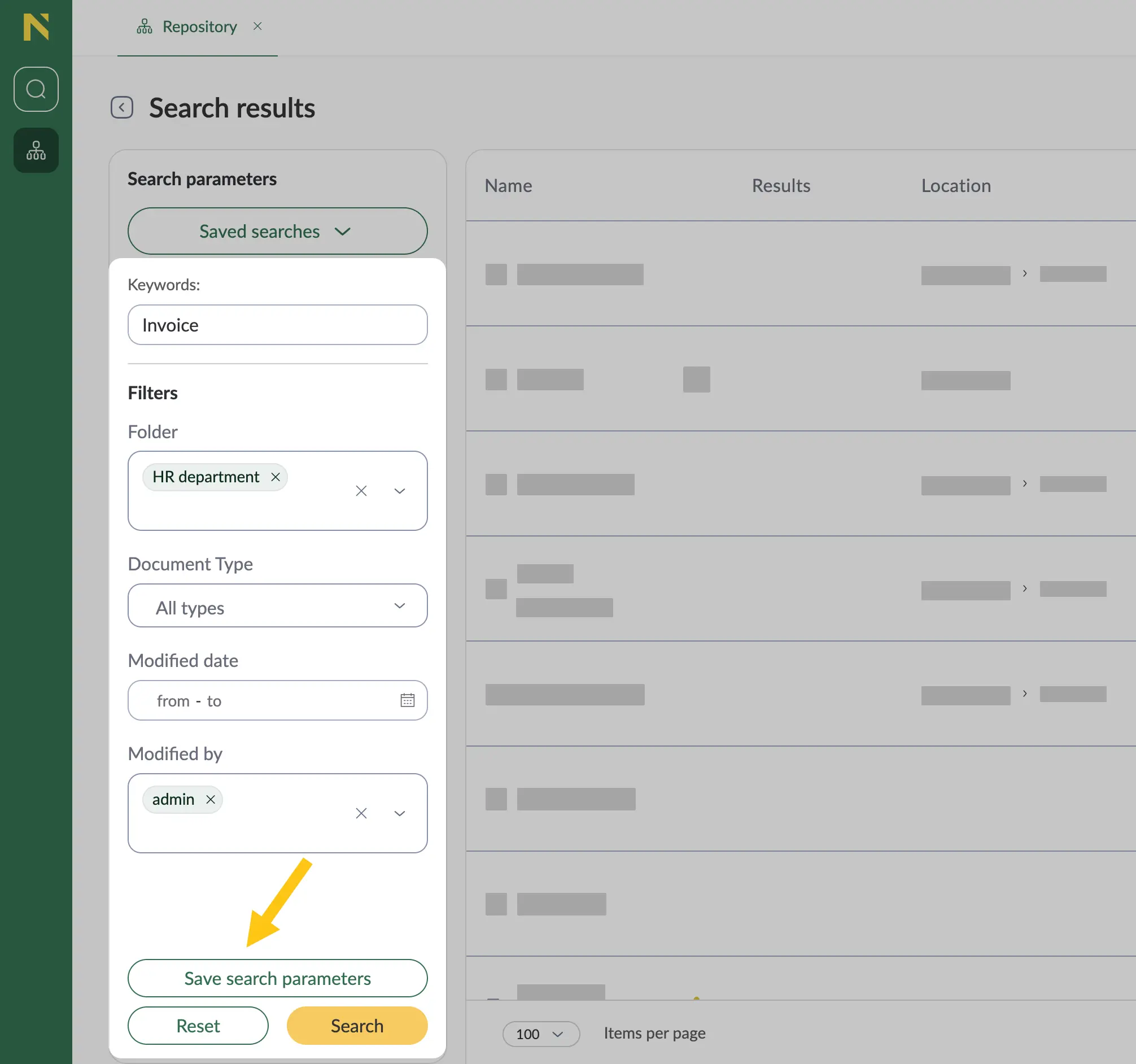
-
In the Name box 1, enter a descriptive name for your search, and then select Save 2.
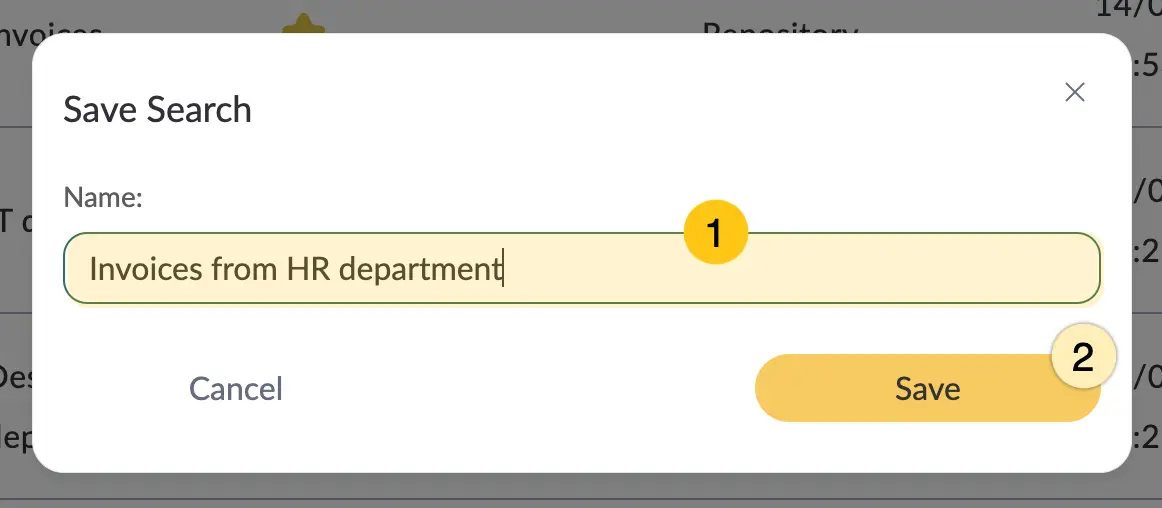
Edit saved search parameters
To edit your saved search, contact your platform Admin.
Share saved search
All saved searches you create are visible only to you and your platform Admin. To share your search with other users, contact your platform Admin.
Use saved search
-
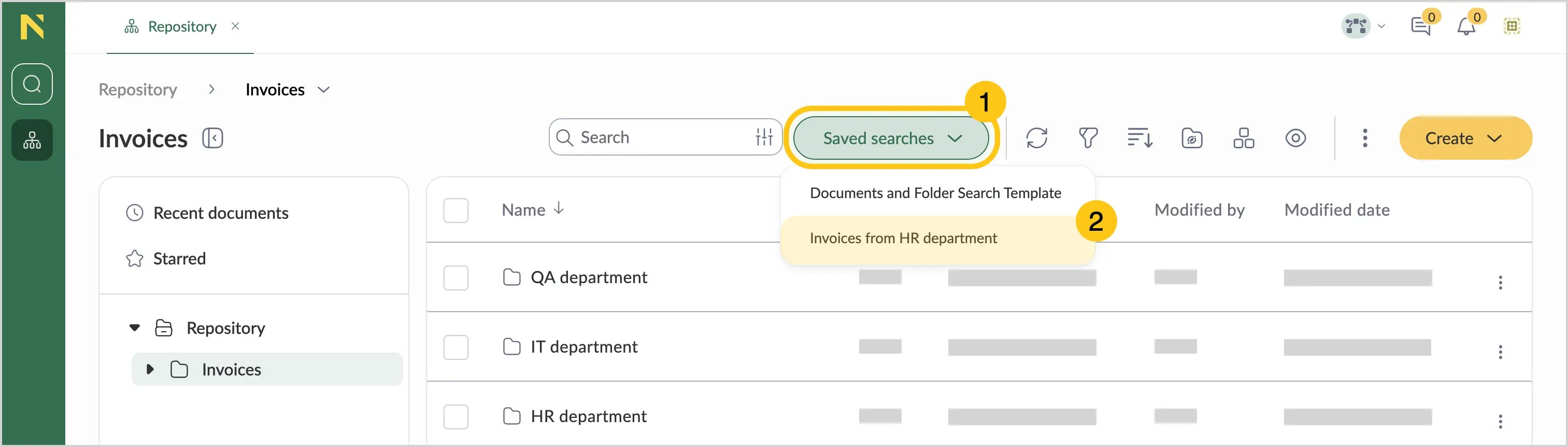
In the toolbar, select the Saved searches button 1 next to the Search box.
-
From the dropdown list 2, select the needed saved search.
-
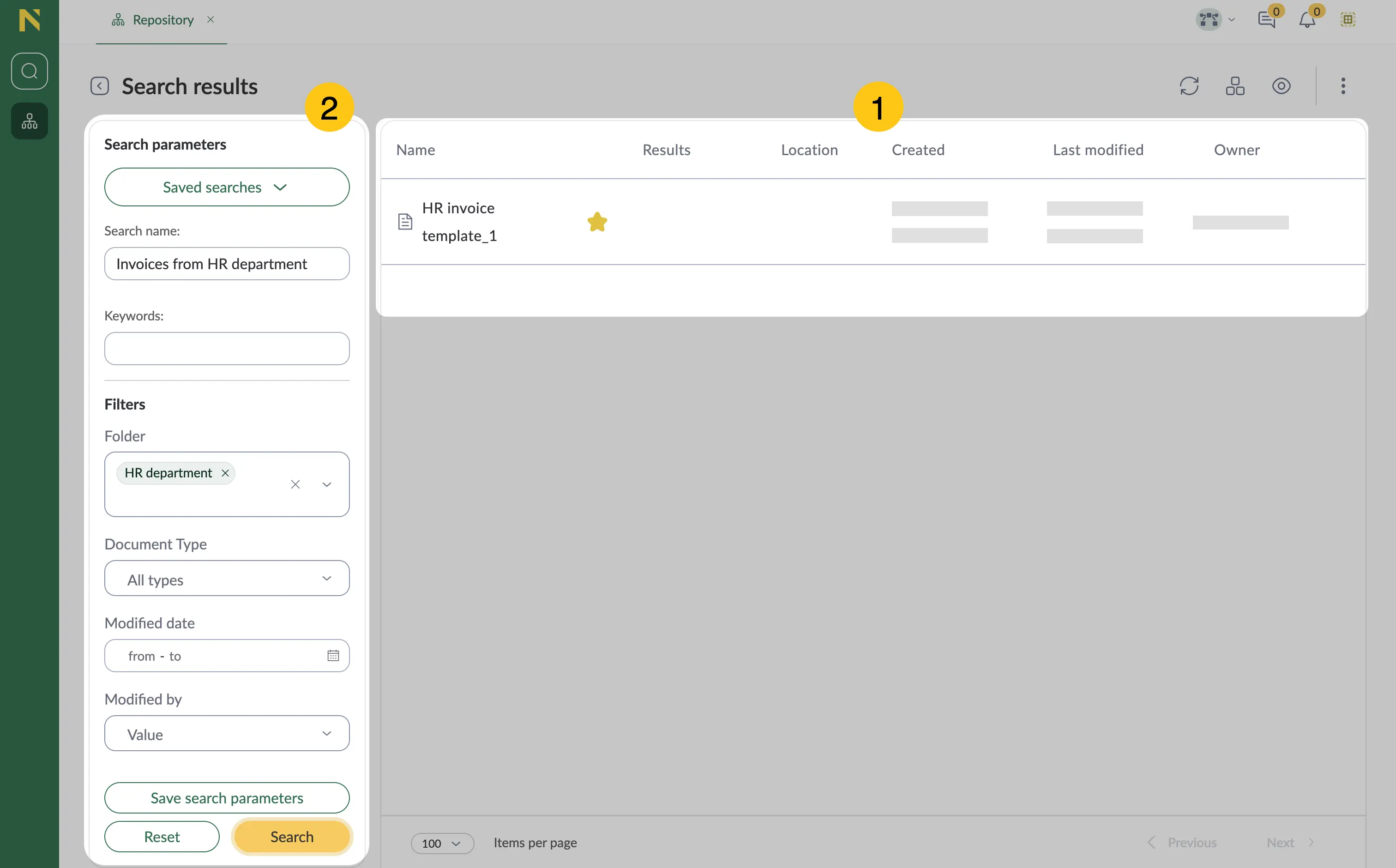
After selecting the saved search, the platform will display the search results 1. You can additionally adjust the search parameters if needed 2.