Work with documents
Create new document
You can create new documents only within folders where you have the appropriate access rights: Folder Admin, Editor, or Document Creator roles.
-
To select a location for your document, in the folder tree, select the target folder.
-74a5ff45107837fe738da8b2f1cff822.webp)
-
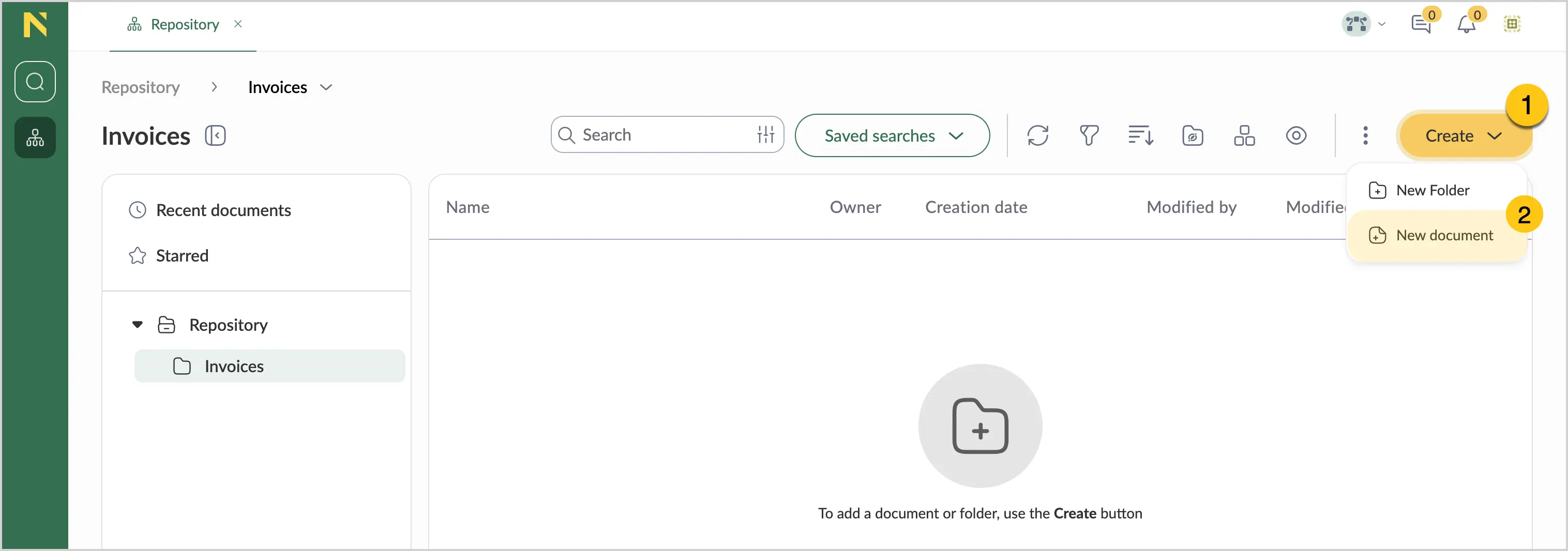
On the action bar, select Create 1, and then select New document 2.
-
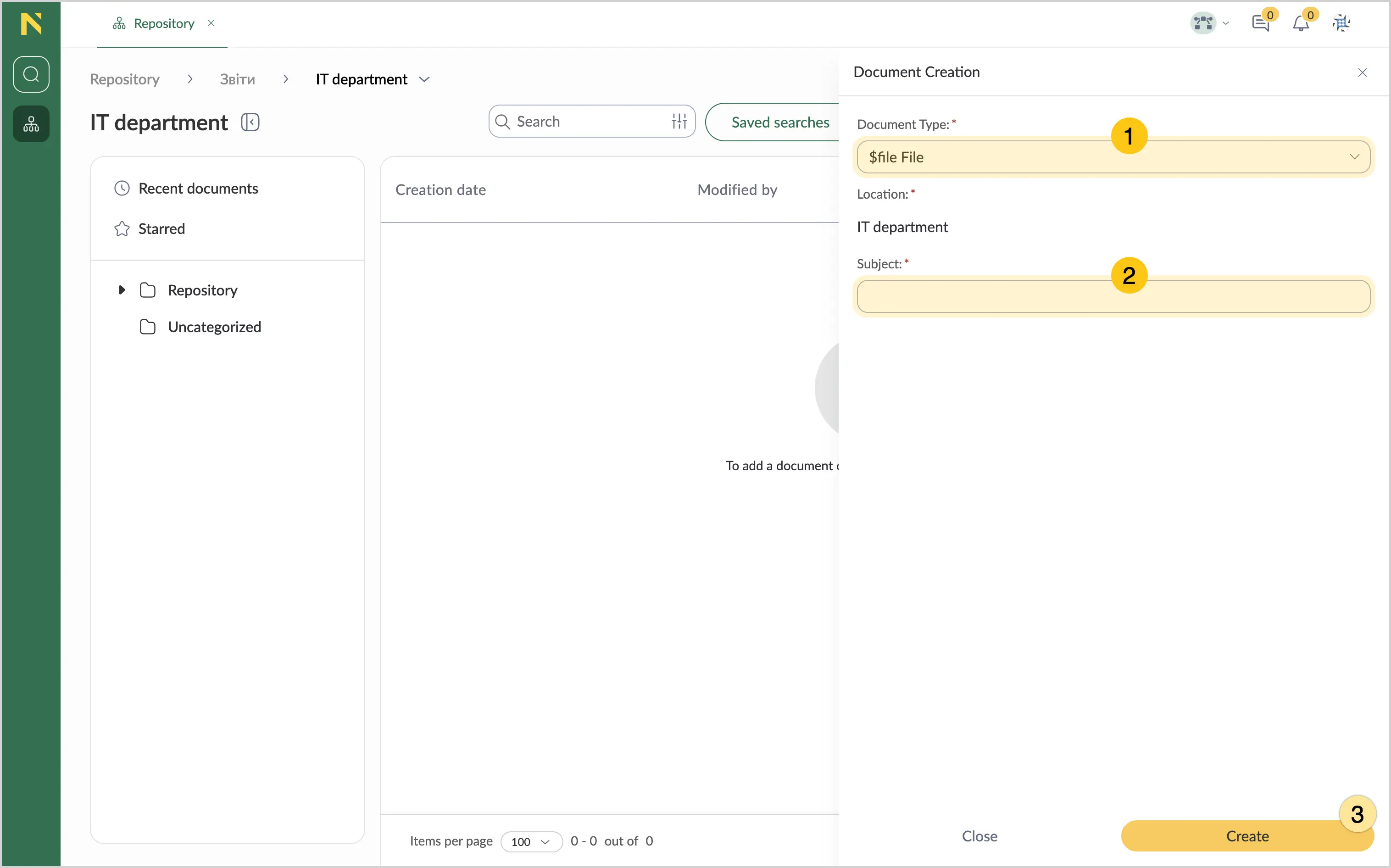
In the Document type box 1, select the needed document type from the dropdown list.
-
In the Subject box 2, enter a descriptive name for your document.
-
Select Create 3.
-
In the Document Image attribute, select the
+icon.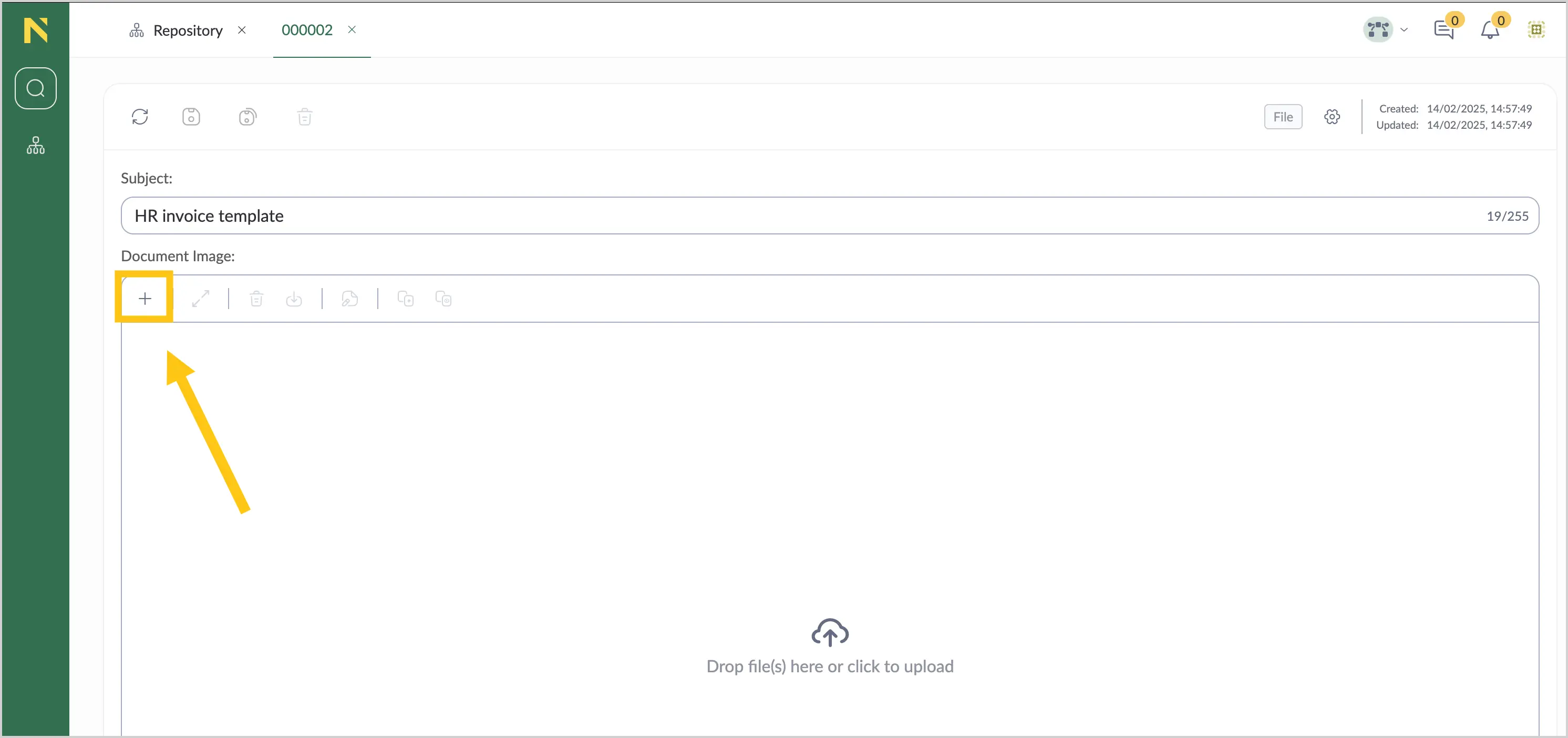
-
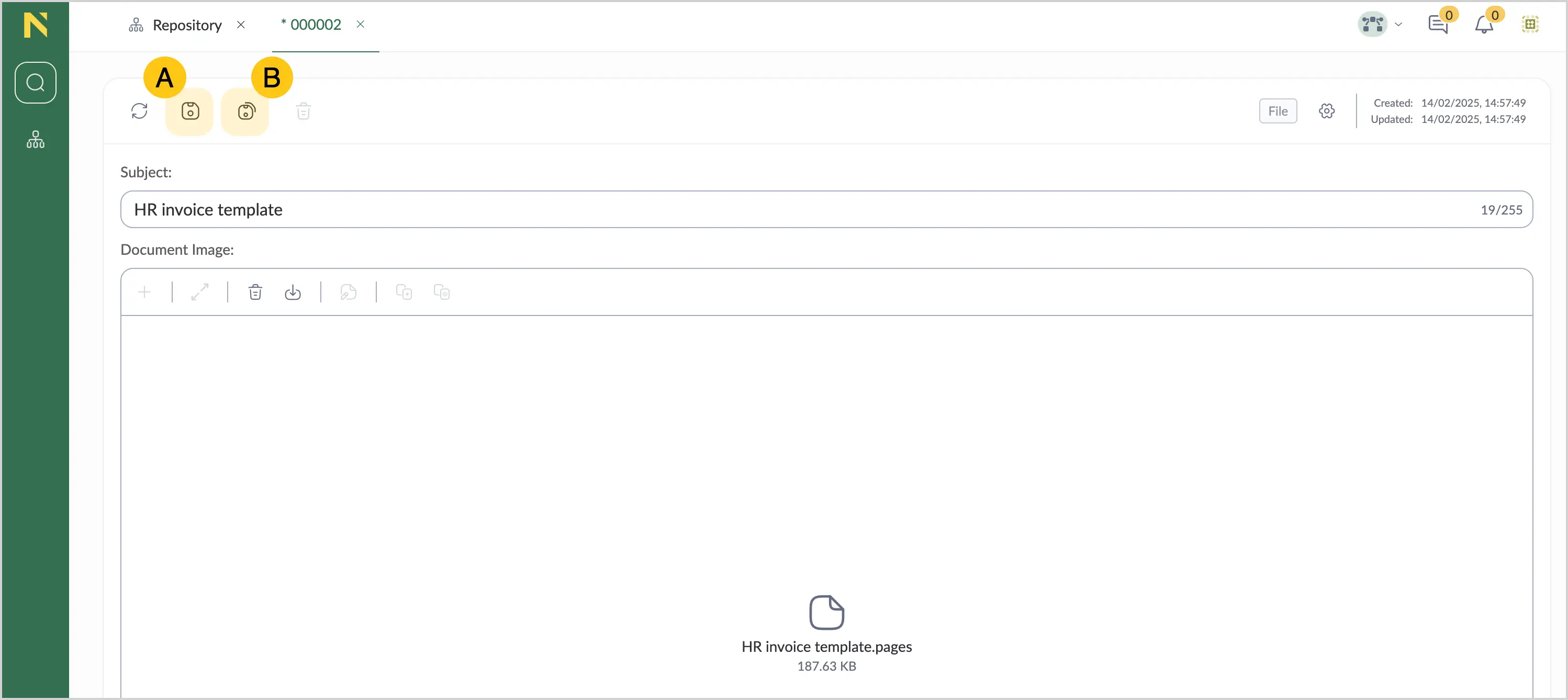
Select the needed file from your device, and then in the actions menu, do one of the following:
- A Select the save icon
 to save the document.
 - B Select the save and close icon
 to save the document and close the form.
- A Select the save icon
If you want to import multiple files at once, and then assign them to the needed document types, use the Import documents feature.
Import documents
Import files directly from your device to quickly add multiple documents at once. This method is most efficient when applying the same document type to several files, saving time compared to creating documents individually. You can still assign different document types to each file if needed.
-
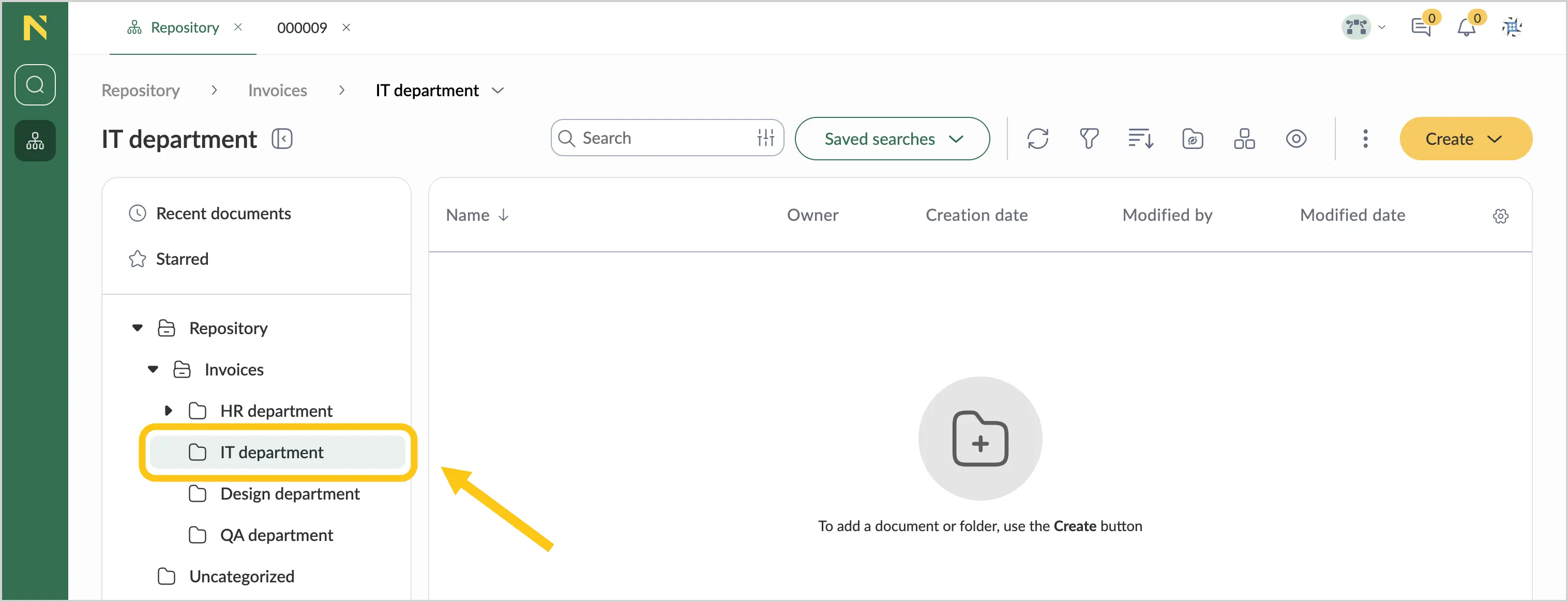
To select a location for your files, in the folder tree, select the target folder.
-
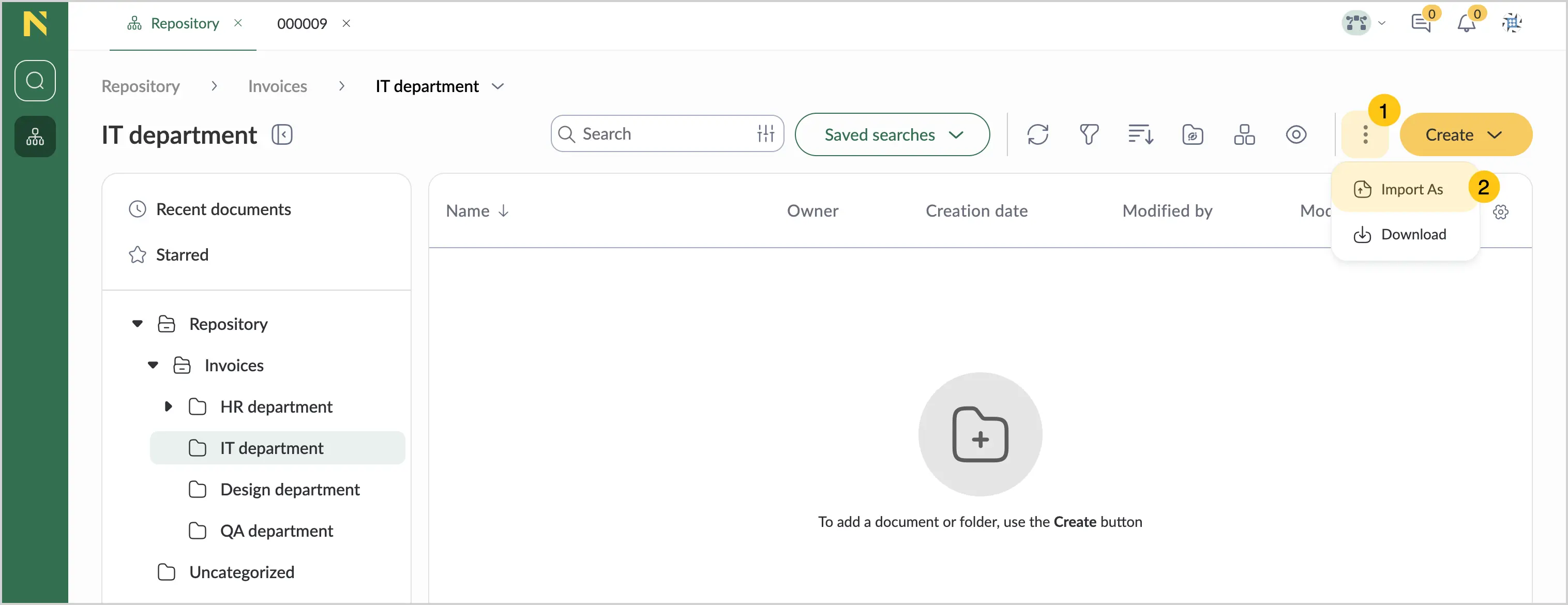
In the toolbar, select 1, and then select Import as 2.
-
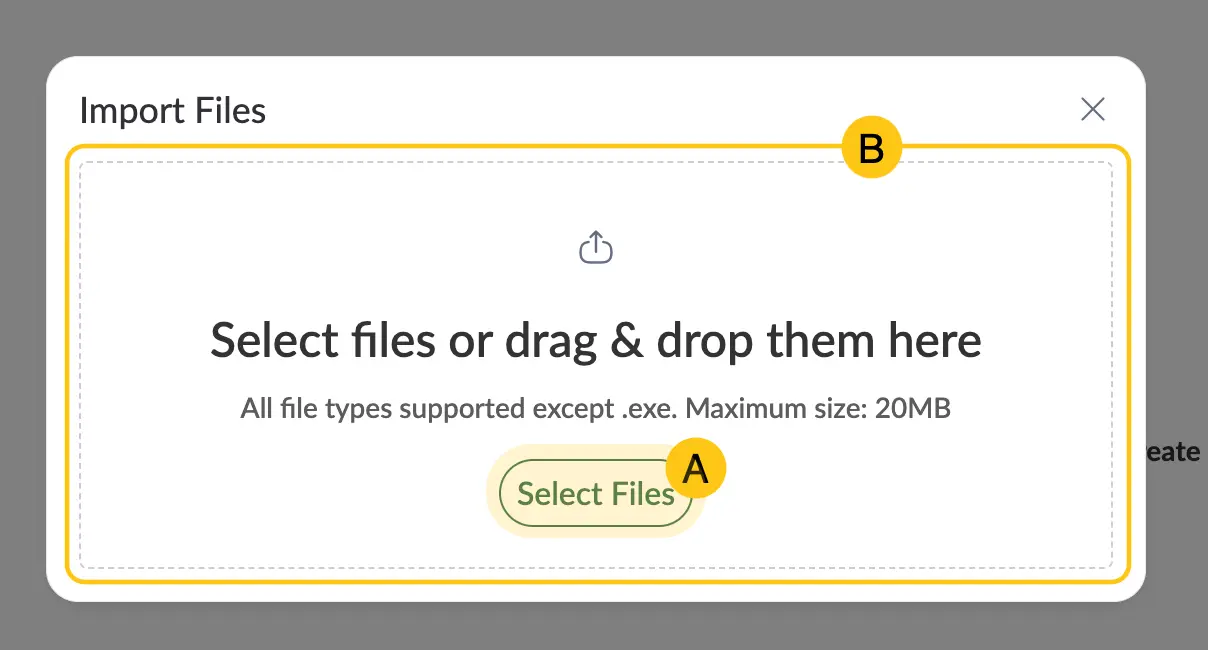
Do one of the following:
- A Select Select files to choose files from your device.
- B Drag and drop files into the Import Files window.
-
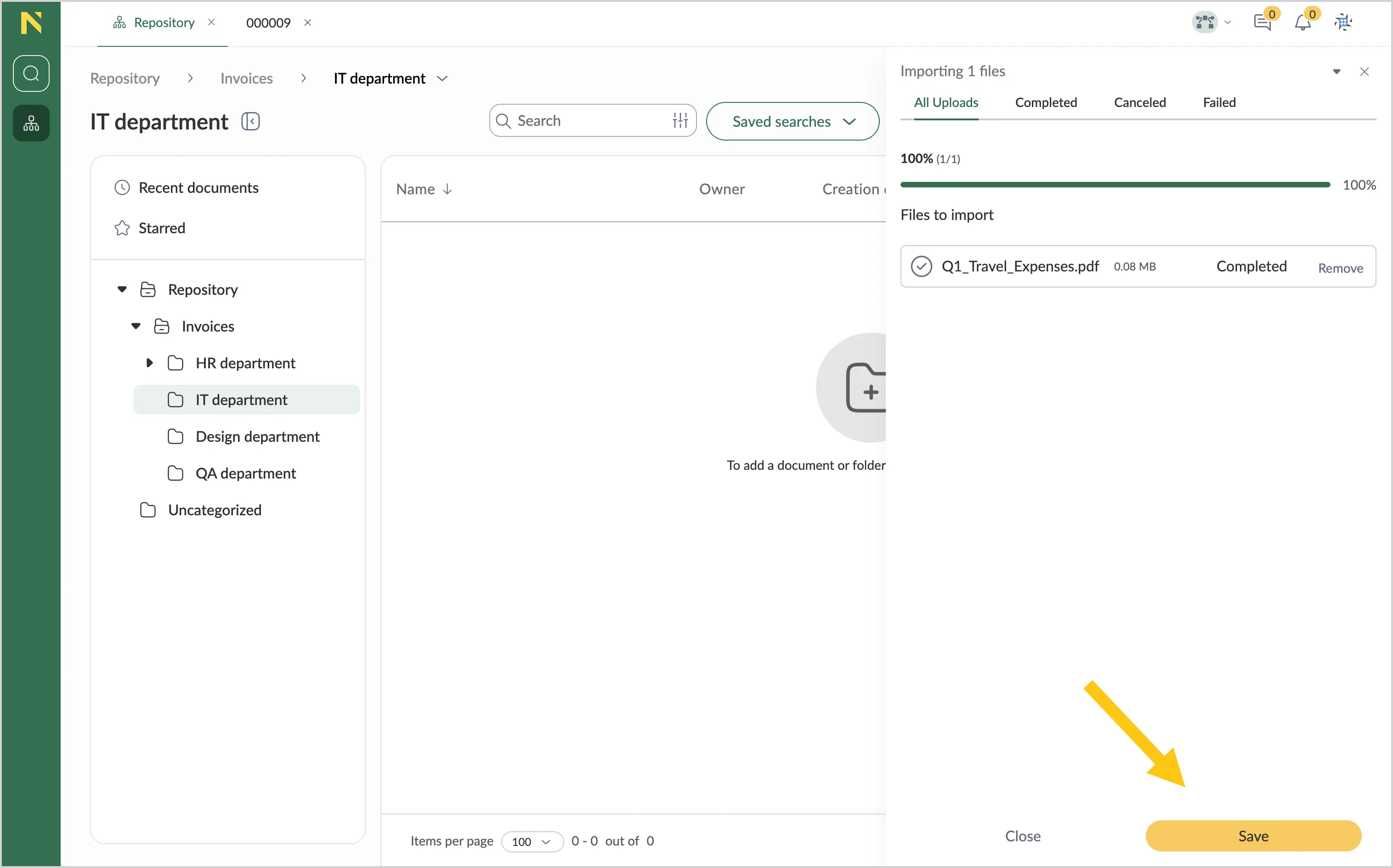
When the import is completed, select Save.
-
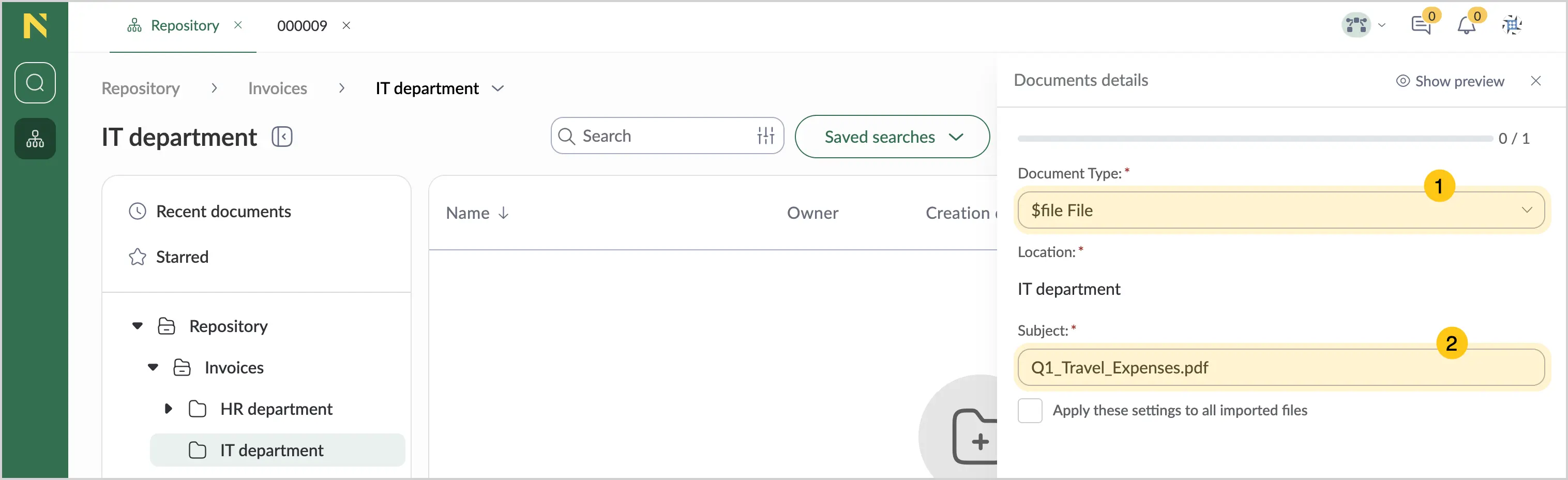
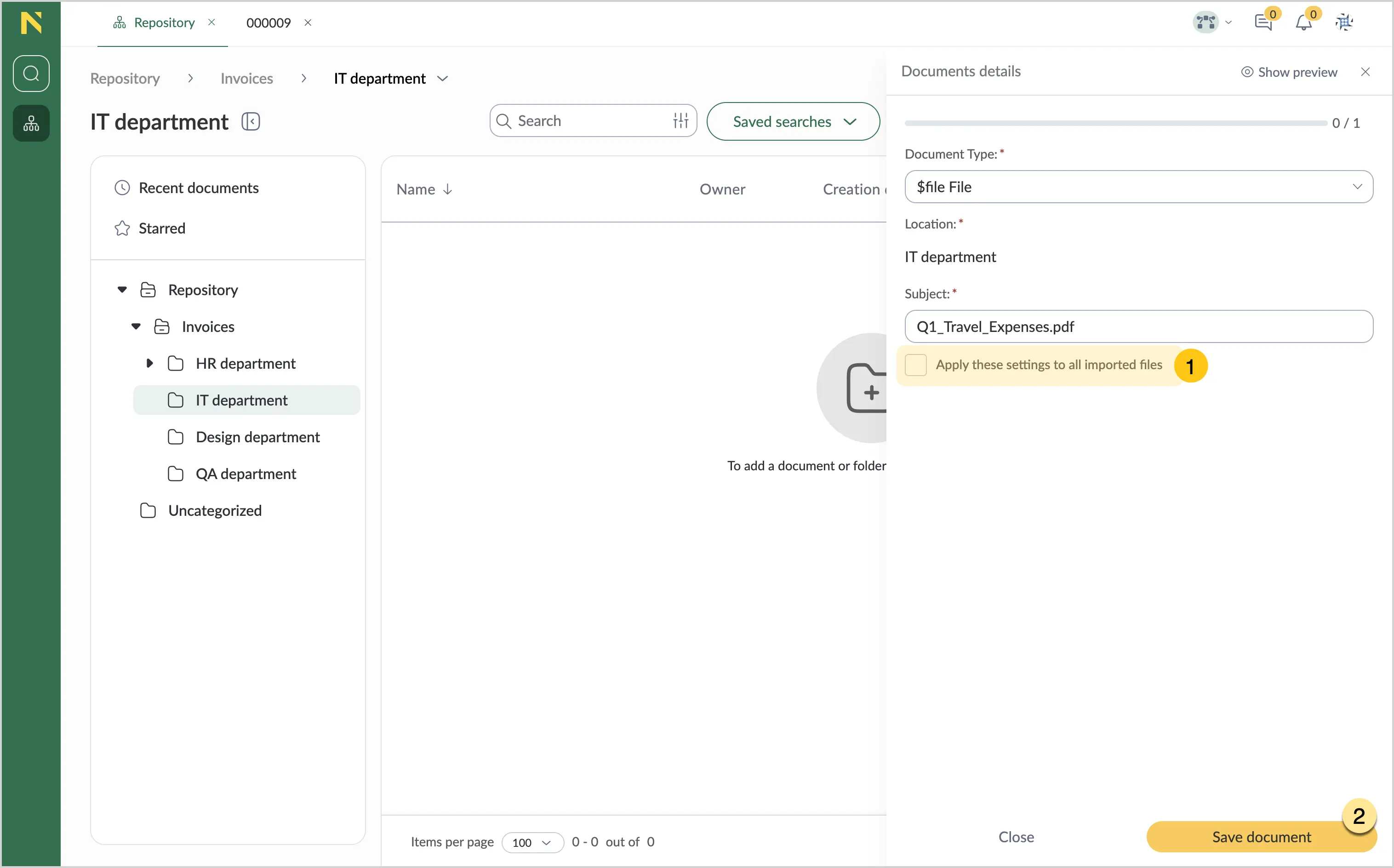
In the Document type box 1, select the needed document type from the dropdown list.
-
Optional: In the Subject box 2, make the needed adjustments.
 tip
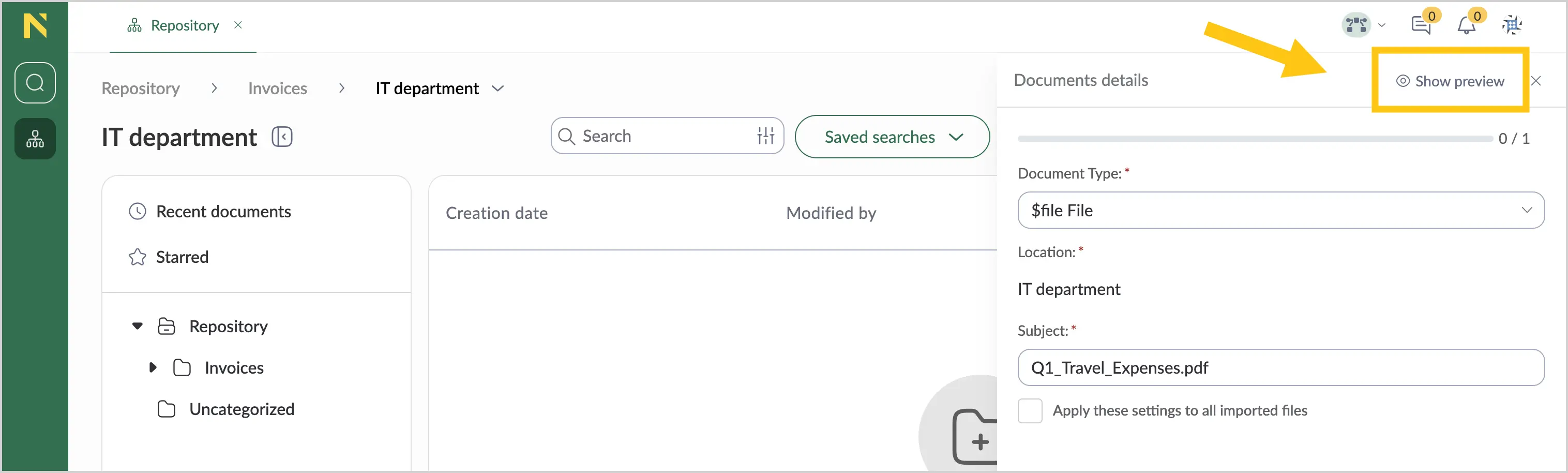
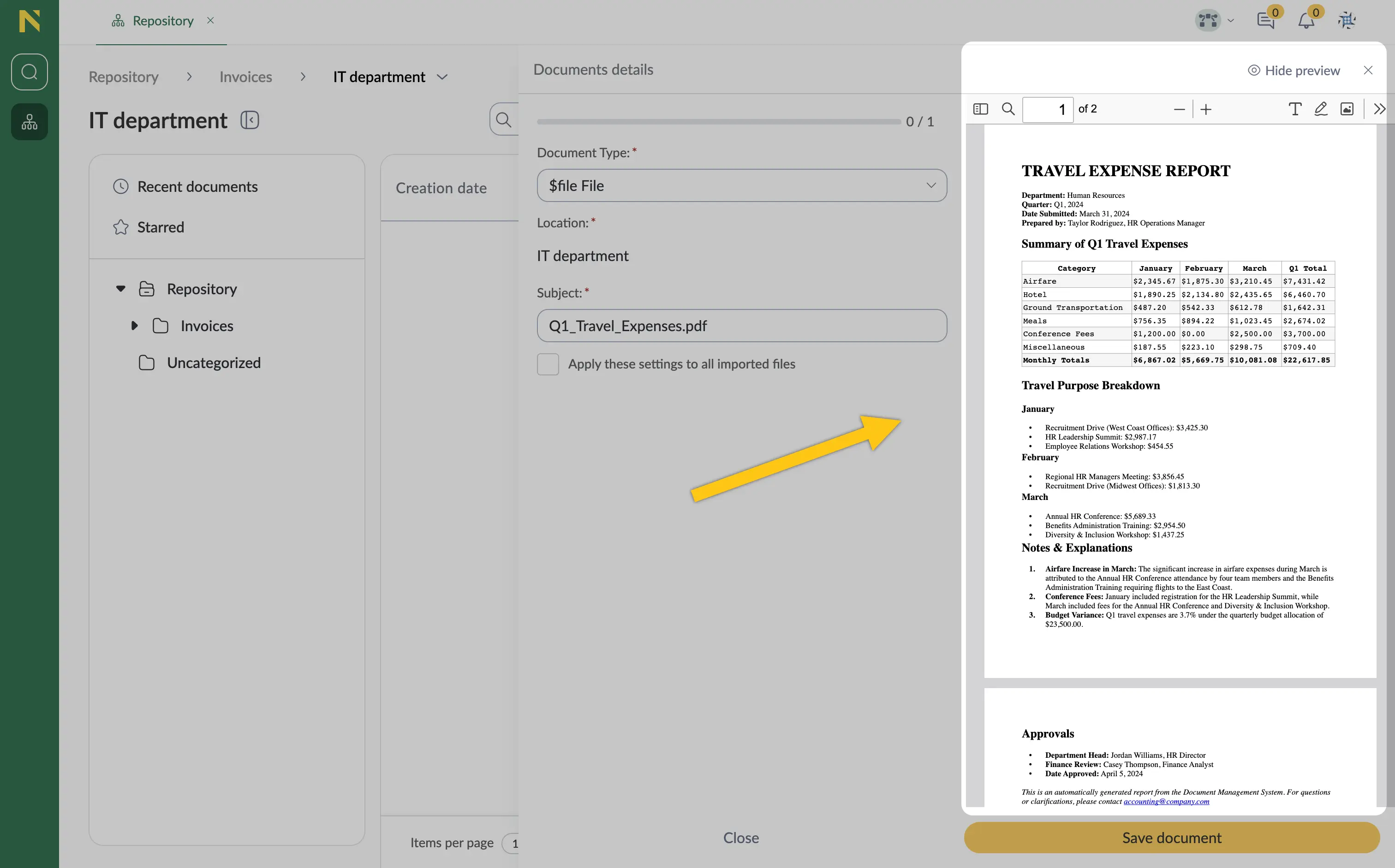
tipTo preview the imported file, select Show preview.
Then, the Preview sidebar will appear.
-
Select the Apply these settings to all imported files checkbox 1 to use the same document type for all imported files.
-
Select Save document 2.
Move document
-
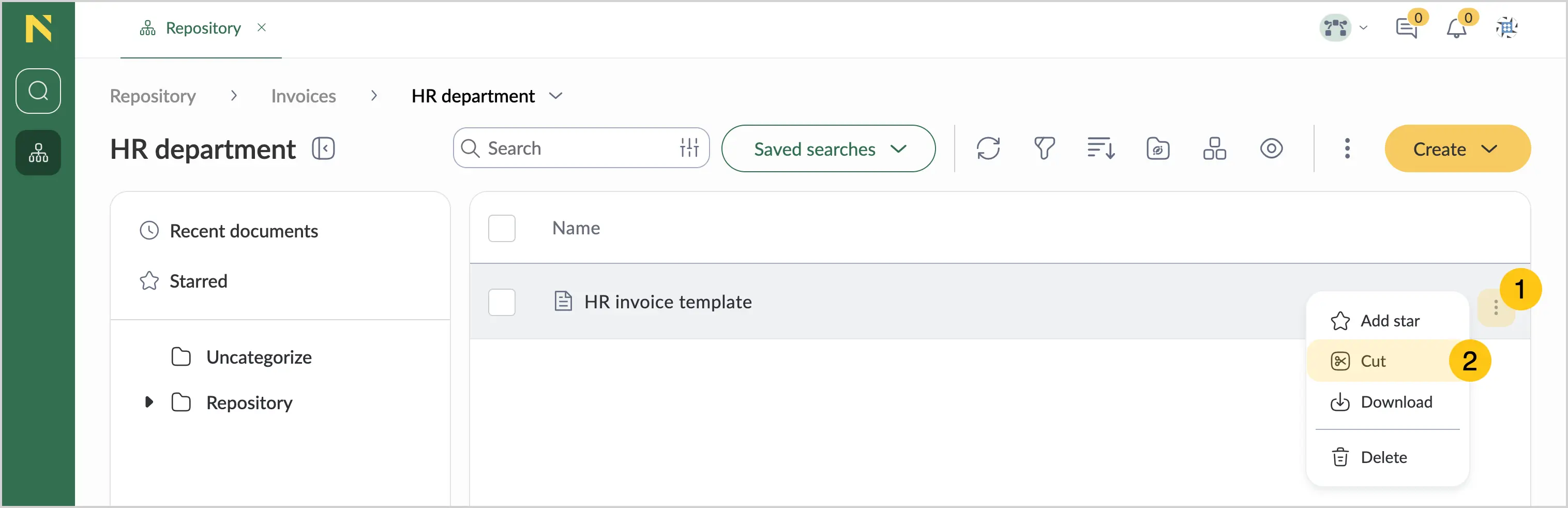
Select the document you want to move.
-
Select 1, and then select Cut
 2.
2. Note:
Note:To move several documents at once, use the Multiselect feature.
-
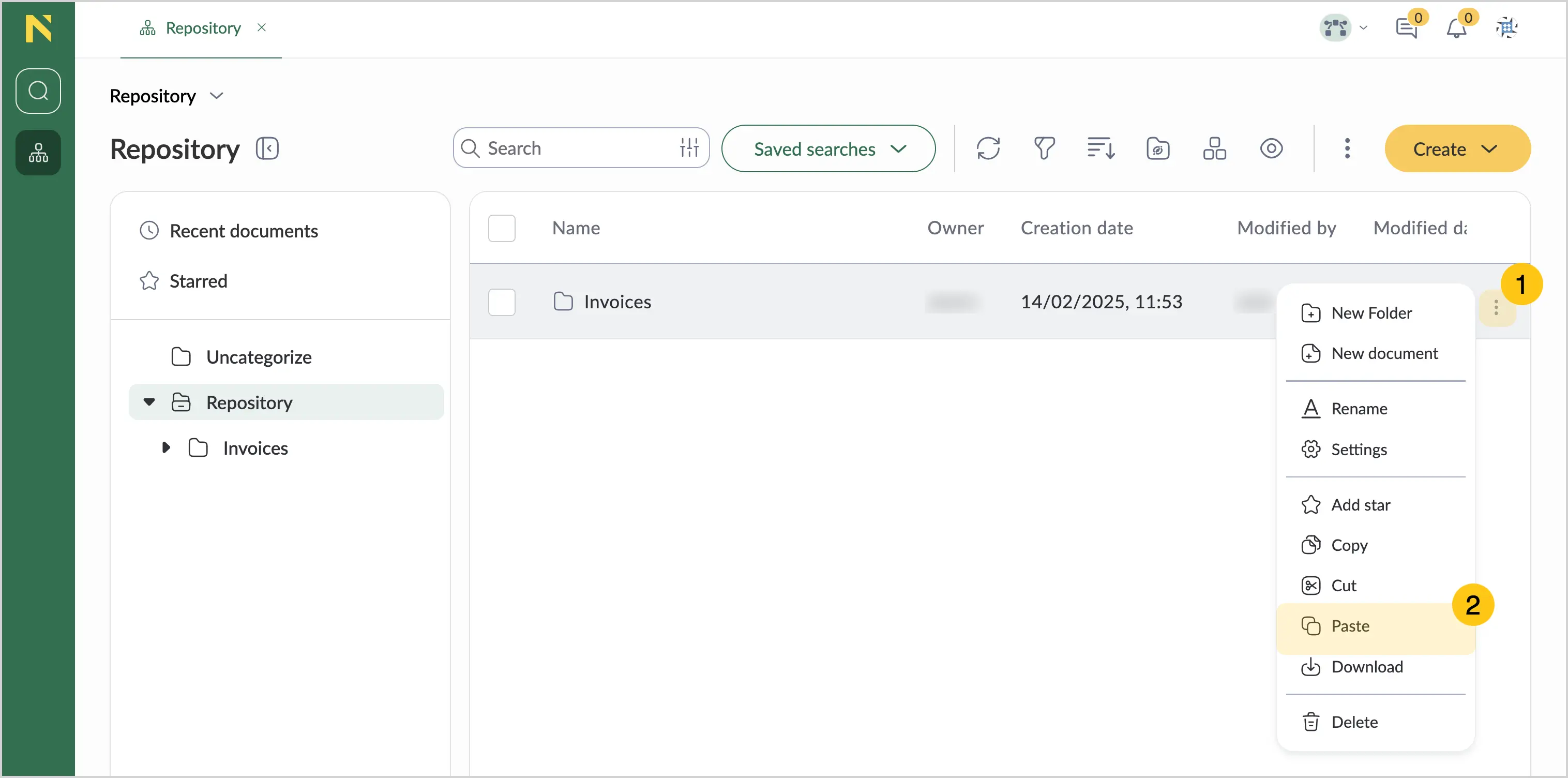
Select the destination folder where you want to move the document.
-
Select 1, and then select Paste
 2.
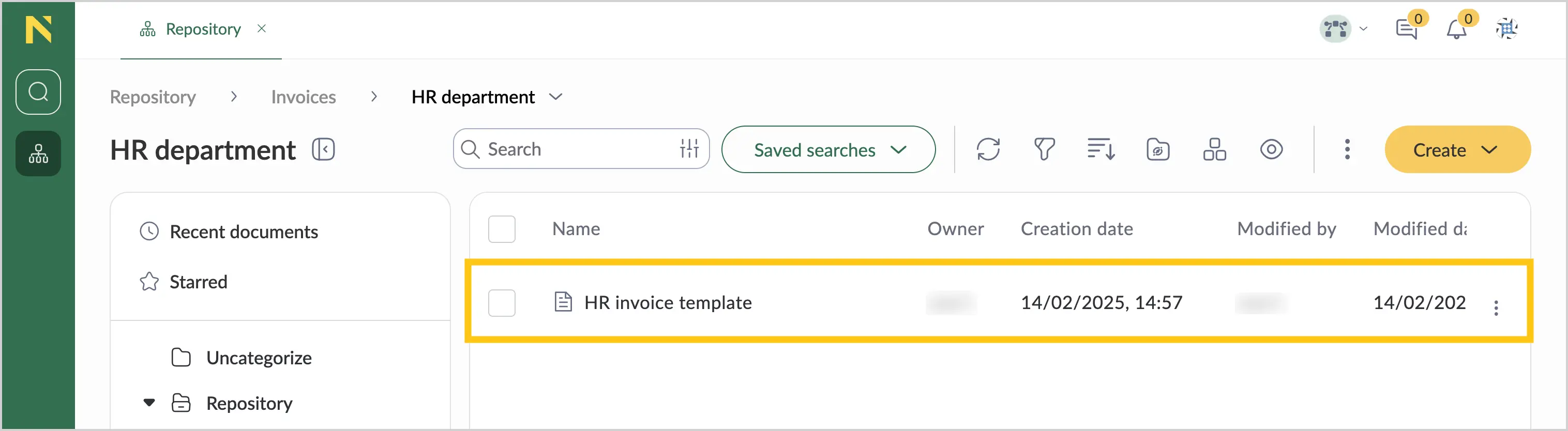
2.
Rename document
-
Double-click the document to open it.
-
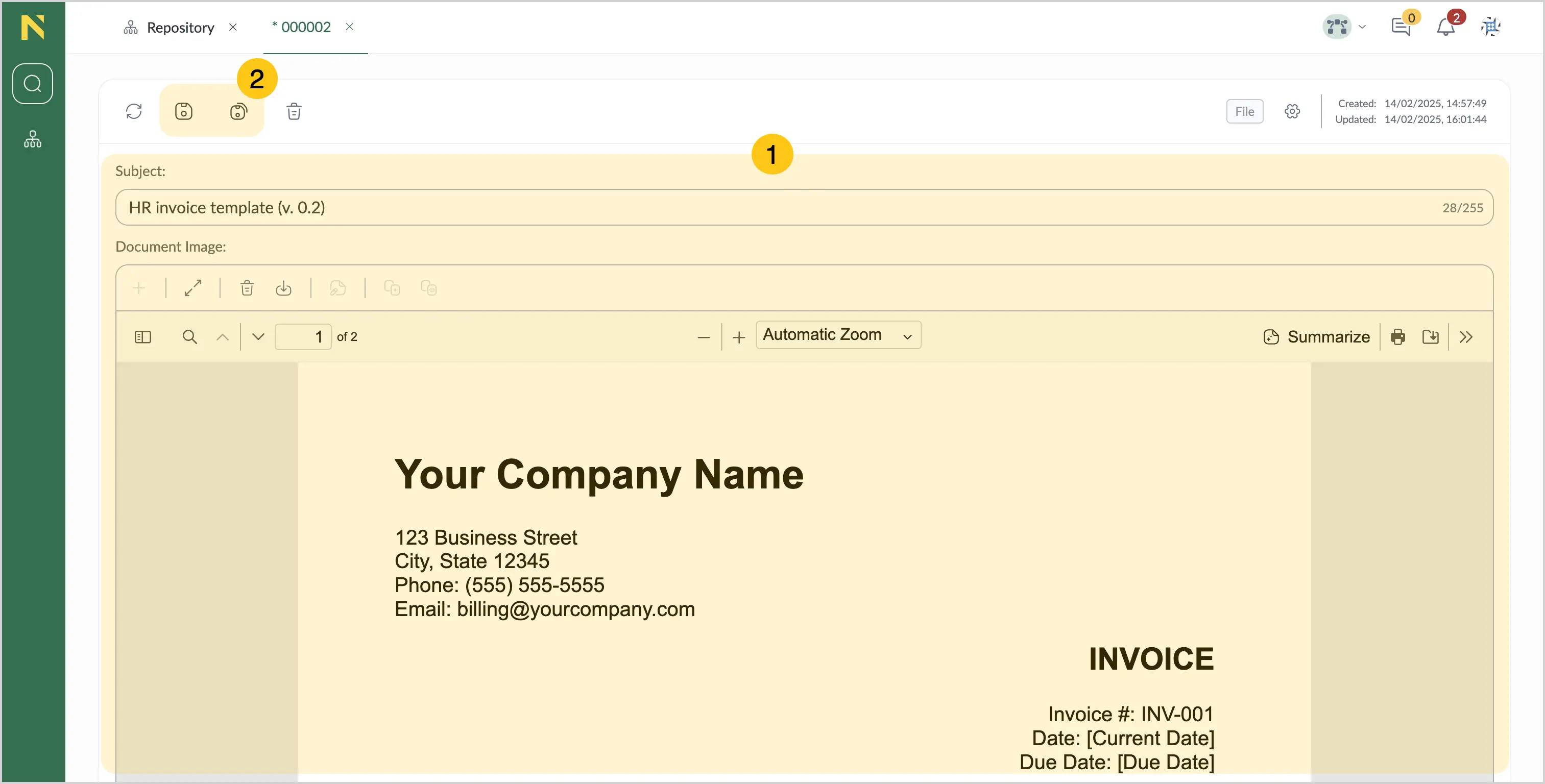
In the Subject attribute 1, make the needed changes, and then in the actions menu, select the save icon
to save the document or select the save and close icon 2 to save the document and close the form.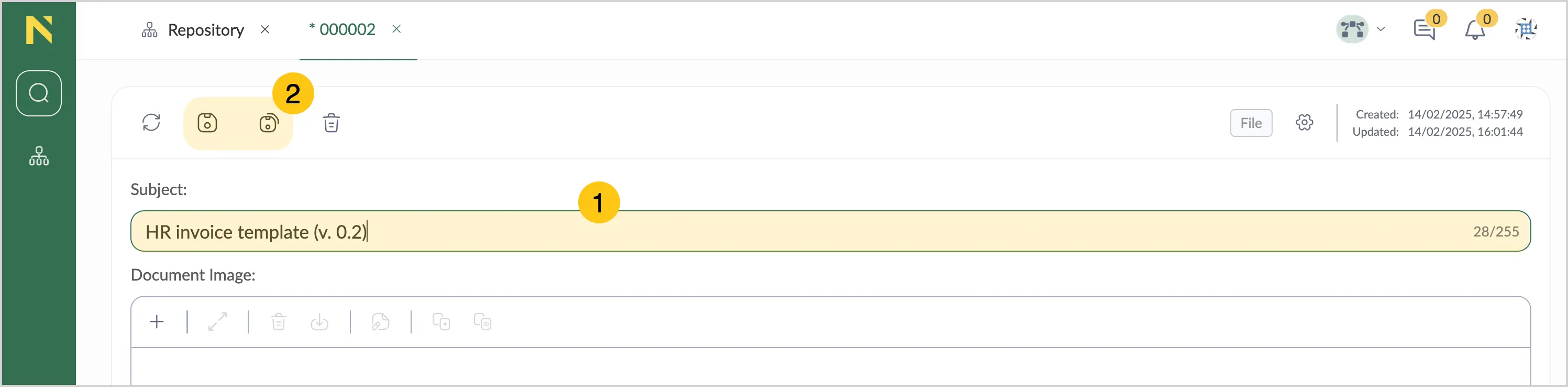
Delete document
-
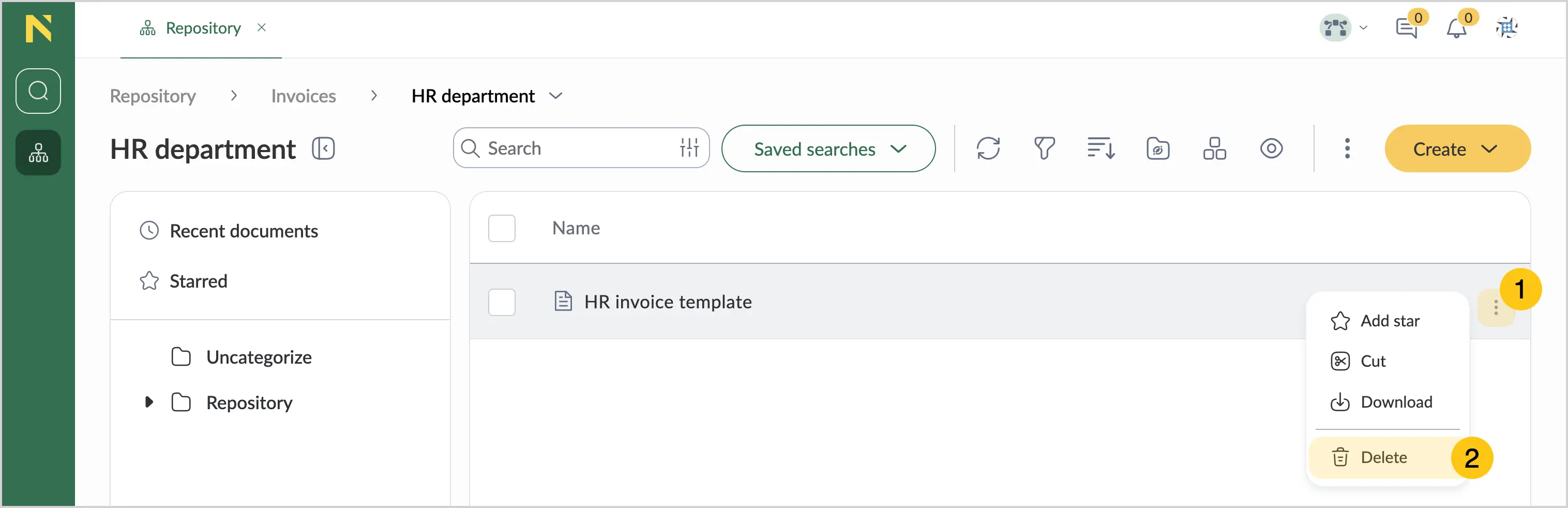
Select the document you want to delete.
-
Select 1, and then select Delete
 2.
2. Note:
Note:To delete several documents at once, use the Multiselect feature.
-
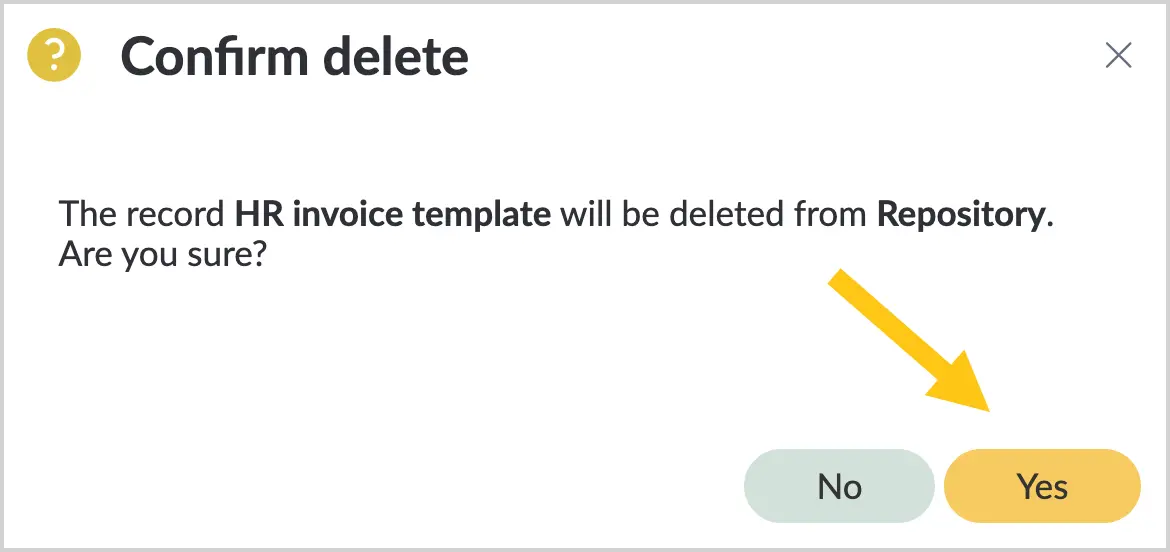
Confirm deletion by selecting Yes.
Download document
-
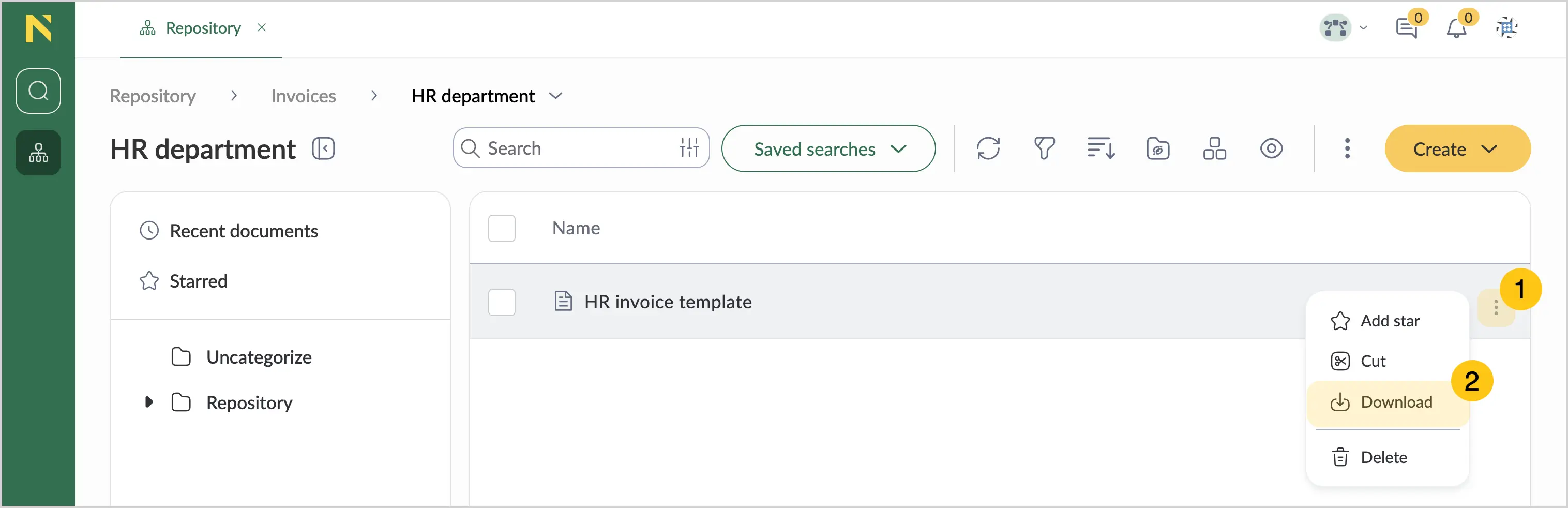
Select the document you want to download.
-
Select the icon 1, and then select
 Download 2.
 Note:
Note:To download several documents at once, use the Multiselect feature.
-
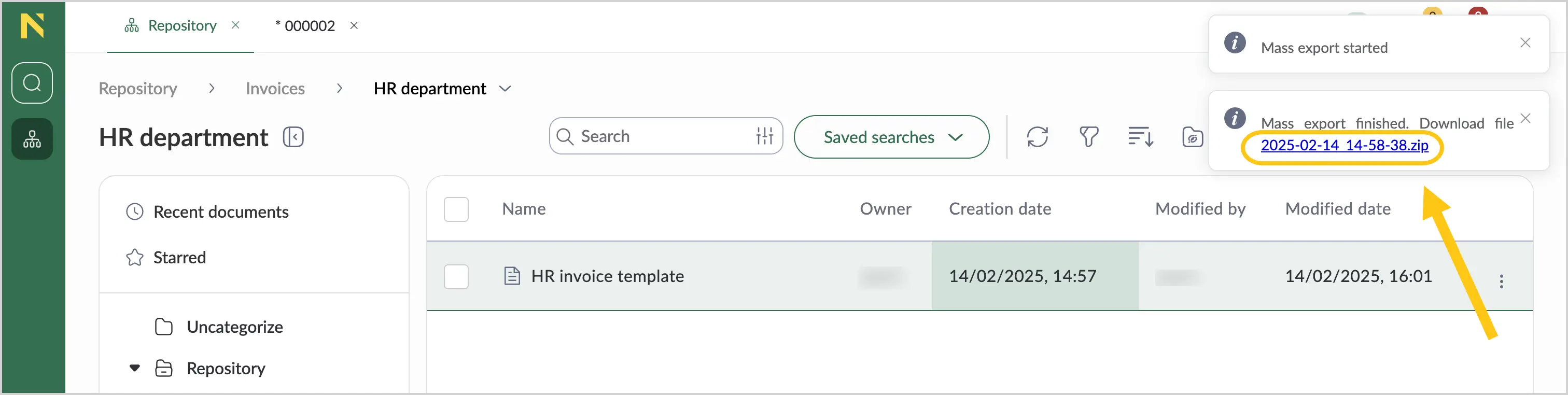
Select the download link in the Mass export finished message at the top-right corner of the screen.
View document properties
-
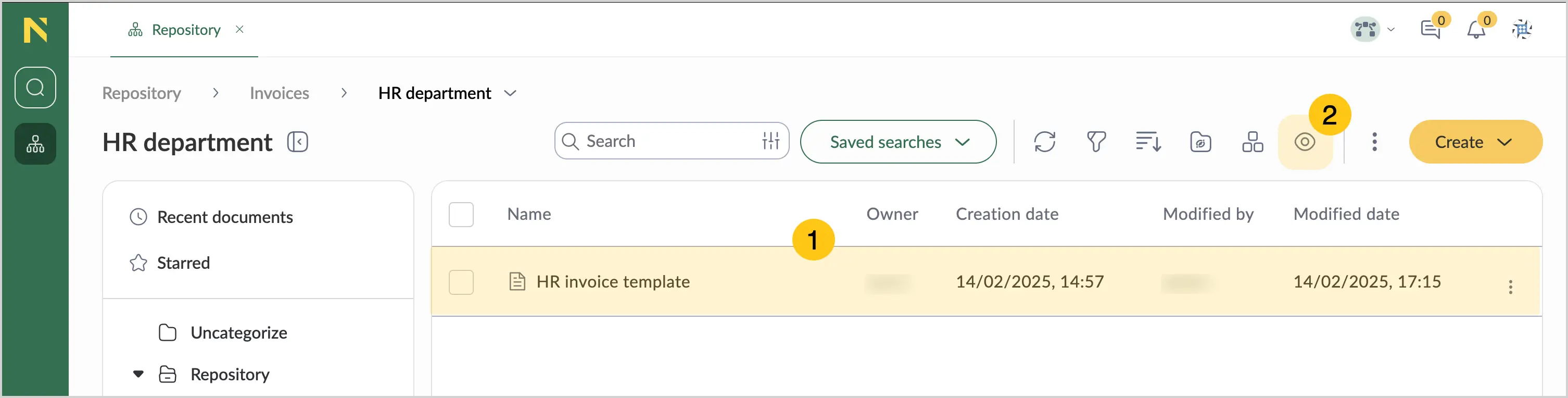
Select a document 1, and then on the action bar, select the preview icon
 2.
2.
-
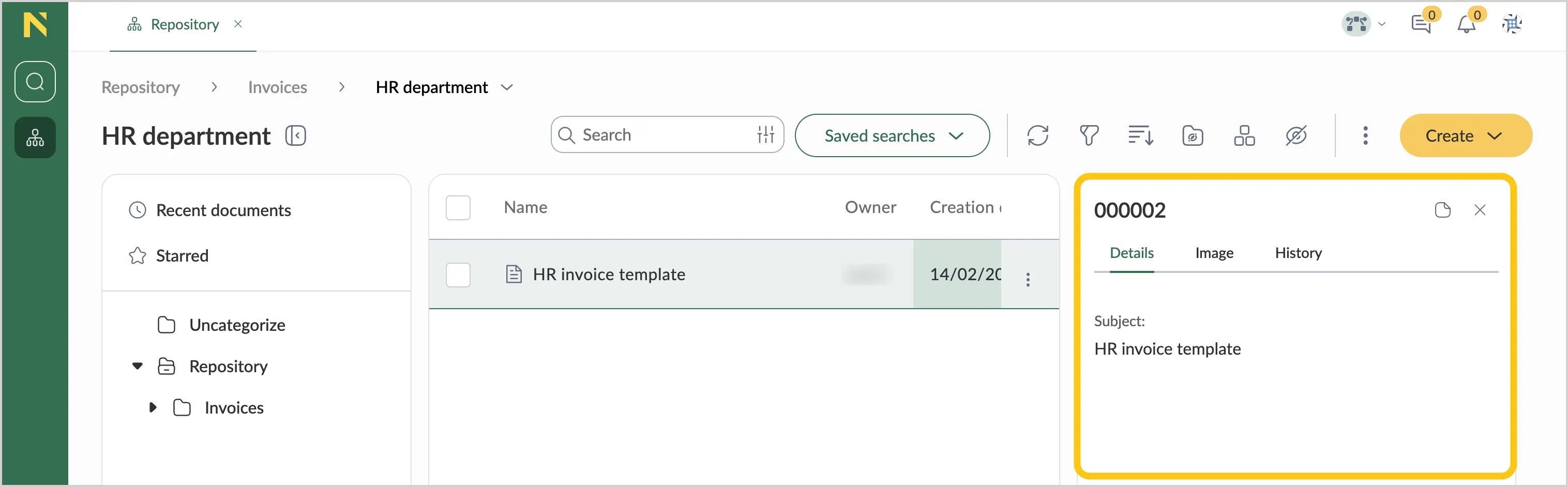
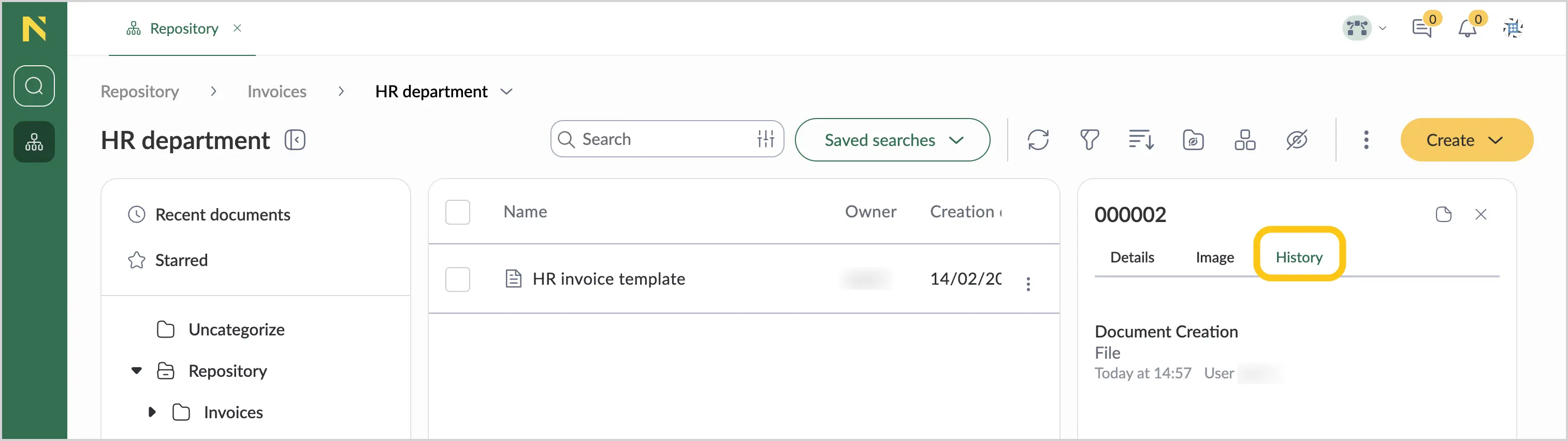
On the right side of the screen, the Details window will appear.
-
Use the tabs menu to view the following properties:
-
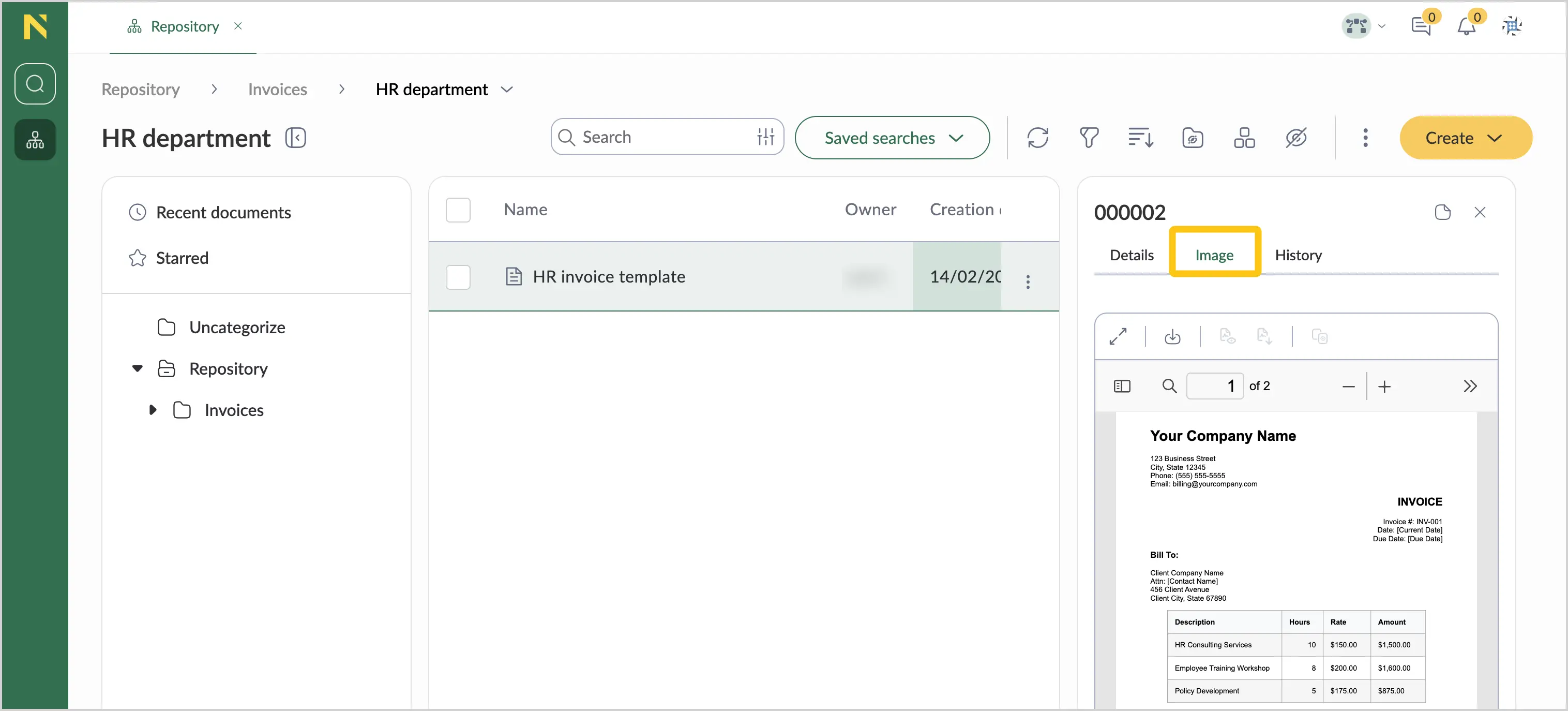
Image
-
History
-
Copy document link
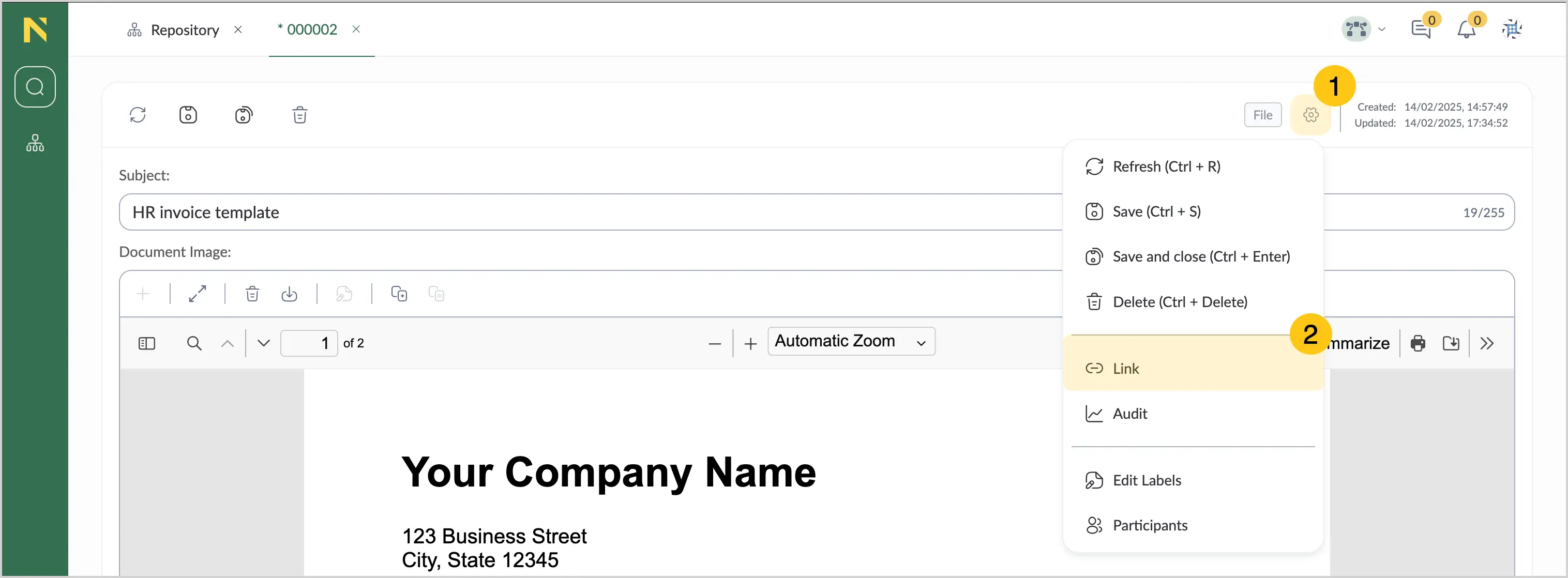
- Double-click the document to open it.
-
In the actions menu, select 1, and then select Link 2. The link will be copied to the clipboard.
Edit document
- Double-click the document to open it.
-
Make the needed changes 1, and then in the actions menu, select the save icon
to save the changes or select the save and close icon 2 to save the changes and close the document.