Get started
Log in
-
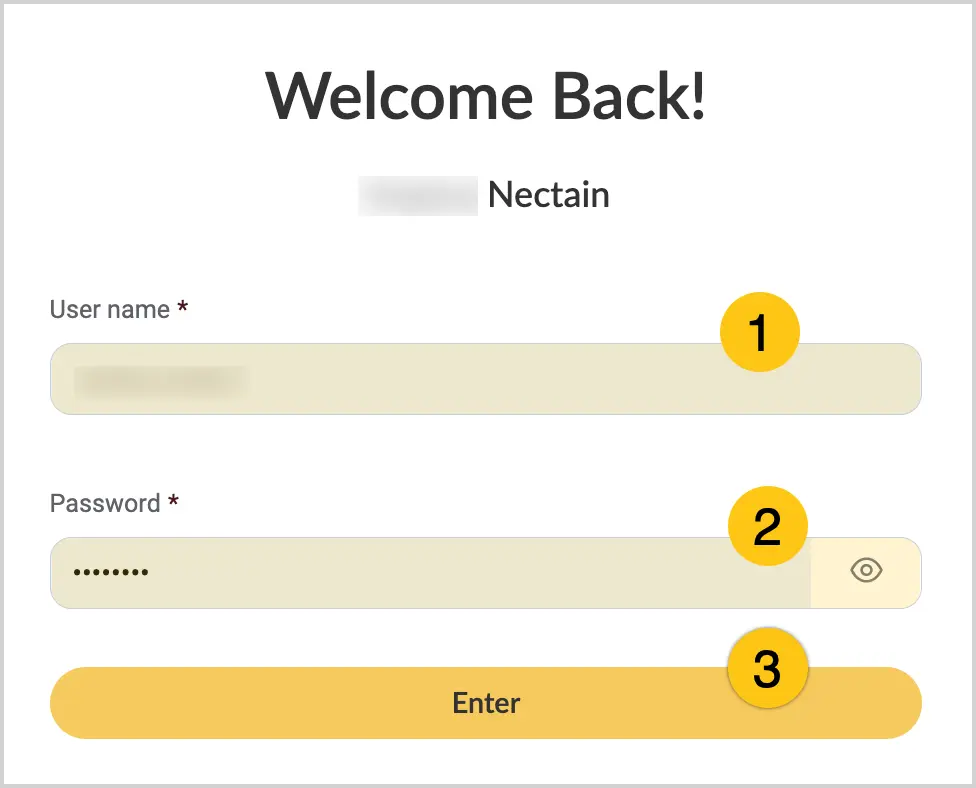
Go to your Nectain platform (link provided by your administrator).
-
In the User name box 1, enter your username. Do not confuse your username with your email address.
-
In the Password box 2, enter the password provided by your administrator. You might be prompted to change your password after your first login to replace the default password with a stronger one.
-
Select Enter 3.
Note:
Contact your system administrator if you need help accessing your account.
Interface overview
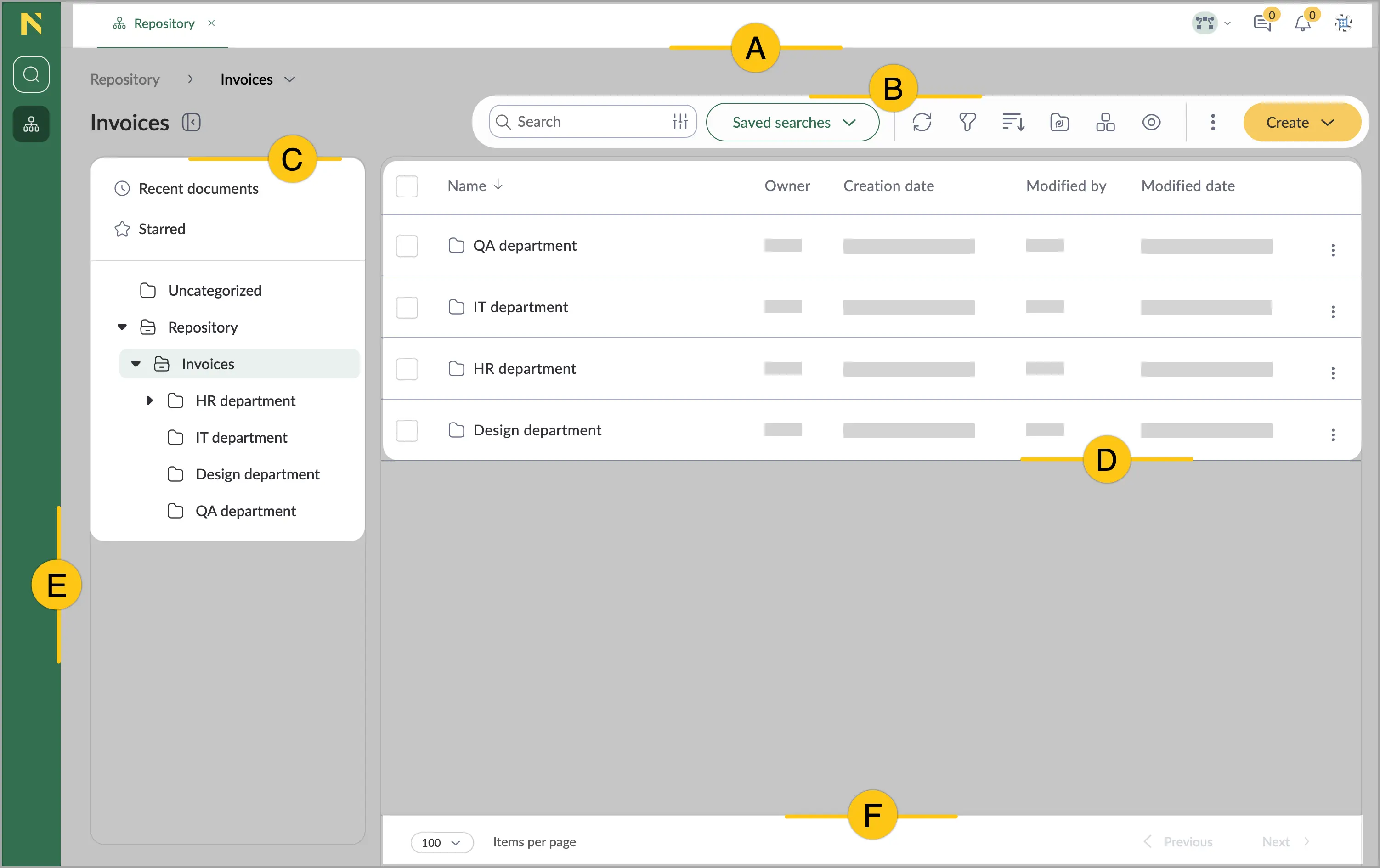
- A Header — contains navigation tabs for workspace areas, system notifications, and your user profile settings.
- B Action bar — displays page-specific actions for managing your content.
- C Folder tree — displays your folder hierarchy. See Show or hide folder tree.
- D Grid — displays your content items in a table format showing details such as name, owner, creation date, and modification information. To change the grid display, see Adjust display.
- E Sidebar — consists of side menu icons for easy navigation between shortcuts.
- F Pagination bar — controls document list display:
- Items per page selector (10, 20, 50, or 100)
- Page navigation (Previous/Next)